Editing Local and Global Statistic Declarations
If you need to declare or edit a large number of similar statistics, the usual dialog boxes (described in Global Statistics and Local Statistics) can be time consuming. In such cases, you can use a text editor or spreadsheet to allow bulk changes and then update the dialog box from a text file.
Procedure 209: Editing Local and Global Statistic Declarations
-
In the Declare Local Statistics or Declare Global Statistics dialog box, click the Edit as Raw Text (Advanced)… button.
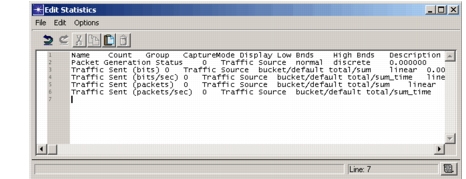
Result: The Edit Statistics dialog box opens, containing any previously defined statistics.
Figure 199: Edit Statistics Dialog Box
-
Edit the statistic declarations as needed. Remember that each statistic must be on a separate line, with tab-separated fields.
Note: To make editing easier, you can copy the text and paste it into a spreadsheet. Then, after editing, copy the spreadsheet cells and paste the edited data back into the Edit Statistics dialog box.
-
In the Edit Statistics dialog box, you can
- choose File > Export to save a copy of the statistic declarations.
- choose File > Import to add statistics from a previously saved text file. All lines from the imported file will be added at the end of the existing text.
-
When you are finished editing the statistic declarations, choose File > Commit.
Result: The statistics in the dialog box are replaced by the edited set.