Import Configlet
If you want to apply a single configlet to a single device, you can use the right-click Post-Import Operations menu choice “Import Configlet…”, shown in Figure 51. This menu choice is available for Cisco and Juniper devices for which device configuration files have previously been imported.
Figure 51: Apply Configlet
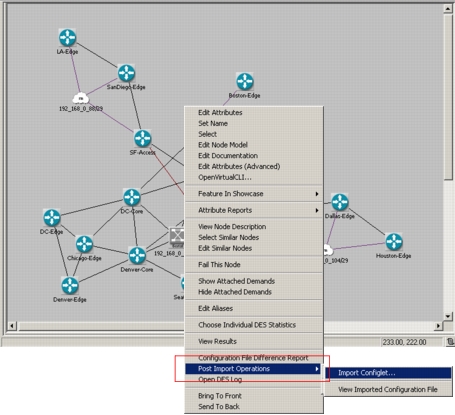
When you select “Import Configlet...”, a simple dialog box appears. In this dialog box, you can load a previously saved configlet file, create and save a new configlet file, and import the configlet to the device.
Note: When you use this option, you cannot select multiple configlet files and multiple devices to which to apply them.
Procedure 8: Import Configlet
-
Right-click on a node for which you have previously imported a device configuration file.
-
Choose Post-Import Operations > Import Configlet…
-
Specify configlet.
- Click the Load button, if you want to load a previously saved configlet file.
- Enter text in the Notepad area, if you want to enter a new configlet. Click the Save button after you finish typing, if you want to save the configlet file for later use.
-
Click the Import button to apply the configlet to the selected device.