Tool Palette
The Tool Palette displays when you right-click on an icon and choose Edit from the pop-up menu.
Figure 242: Image Editor Tool Palette
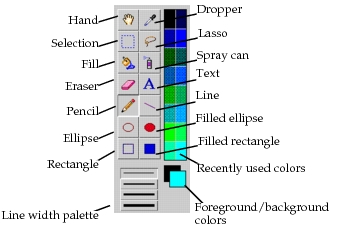
The Tool Palette contains the following editing tools for creating and editing an icon.
Table 139: Tool Palette Summary
| Tool | Description |
|---|---|
| Hand | Repositions an oversize image. Select and drag the oversize image with the Hand Tool to reposition the image. |
| Dropper | Picks up the color from a pixel. Click anywhere in the image editing pane or the Color Palette to pick up a color. The color you pick up is displayed in the Foreground Color Box. To pick up a background color, press the Control key when you click the Dropper Tool. |
| Selection | Selects a rectangular area of an image for editing. To select the entire image editing pane, double-click the Selection Tool in the Tool Palette. |
| Lasso | Selects an irregular area. |
| Fill | Fills the enclosed area of an image with the foreground color. |
| Spray Can | Draws the foreground color with a “spray” pattern |
| Eraser | Replaces the color of an image with the background color. Drag the Eraser over the area you want to erase. Press the Shift key before erasing to constrain the Eraser Tool horizontally or vertically. To clear the entire editing area, click in the image editing pane, and then double-click the Eraser Tool in the Tool Palette. |
| Text | Places text into the image. Click in the image editing pane with the Text Tool to open an Image Text Window. Text entered in the Image Text Window appears as a selection in the image. |
| Pencil | Draws or erases one pixel at a time. Click in the image editing pane with the Pencil Tool to draw or erase a pixel. If the Pencil Tool is used on an image area that contains the foreground color, the Pencil Tool draws the background color. Otherwise, the Pencil Tool draws the foreground color. Drag the Pencil Tool to draw a continuous line. Use Fat Bits mode to draw one pixel at a time. |
| Line | Draws straight lines. Drag the Line Tool in the image editing pane to draw a straight line. Press the Shift key during the drag operation to constrain the line horizontally, vertically, or to a 45-degree angle. |
| Ellipse | Draws an ellipse Drag the Ellipse Tool in the image editing pane to draw an ellipse. Press the Shift key during the drag operation to constrain the ellipse to a circle. |
| Filled Ellipse | Draws a ellipse filled with the foreground color. Drag the Filled Ellipse Tool in the image editing pane to draw a filled ellipse. Press the Shift key during the drag operation to constrain the ellipse to a circle. |
| Rectangle | Draws a rectangle. Drag the Rectangle Tool in the image editing pane to draw a rectangle. Press the Shift key during the drag operation to constrain the rectangle to a square. |
| Filled Rectangle | Draws a rectangle filled with the foreground color. Drag the Filled Rectangle Tool in the image editing pane to draw a filled rectangle. Press the Shift key during the drag operation to constrain the rectangle to a square. |
| Line width palette | Specifies the width of any lines drawn with the line tool or the border of an ellipse or rectangle. |
| Recently used colors | Contains the 16 colors most recently used in your image. When you select a new color, it is added to the bottom of the palette and a color is deleted from the top. To make a color in the palette the foreground color, left-click on it. To make it the background color, right-click on it. |
| Foreground/background colors | To select a new foreground or background color, click and hold the color box. When the Color Palette displays, drag the pointer to a new color. |