Custom Attribute Organization
Model developers can customize the way a node’s attributes appear in the Edit Attributes dialog box. For example, you can organize attributes into logical groups such as “Application”, “Frame Relay” or “Routing Protocols”. Grouping attributes can help model users navigate an attribute tree and find attributes of interest more easily.
Grouped attributes appear similar to sub-attributes in the attribute hierarchy. In both cases, related attributes appear as child attributes within the parent attribute or group name.
This customization affects only how attributes appear in the Edit Attributes window, and has no effect on simulation behavior.
Grouping Methods: Logical Grouping and Structural Grouping
A model developer can use two methods for grouping attributes:
- logical grouping
- structural grouping
Using logical grouping, the developer assigns a group name and (optionally) one or more sub-groups to a node or process attribute. When a model user opens Edit Attributes, all attributes with the same group name appear within the specified group/subgroup hierarchy. You can use this method to organize attributes into logical groups such as “ATM”, “Application Traffic”, and “Routing Protocols”.
The following figure shows how grouped attributes are organized in the Edit Attributes window. This node has a process model with two attributes related to application traffic: “Destination Preferences” and “Source Preferences”. Using logical grouping, the process model developer can group the two attributes to indicate that they are related.
Figure 190: Using Logical Grouping to Group Attributes

Structural grouping involves renaming and merging attributes in the Node Editor. This method is useful for grouping attributes based on the internal structure of a node model. For example, suppose you create a server node model that contains four CPU modules. All four modules use the same process model, which has an attribute called “background utilization”. In an ungrouped organization, the attributes would appear as shown in the following figure.
Figure 191: Using Structural Grouping to Group Attributes

Using structural grouping, you can rename and regroup these attributes so they appear like this:
Figure 192: Using Structural Grouping to Rename and Regroup Attributes

Structural grouping is most useful when you want to organize process attributes in a node model. Using this method, you can access and organize all the node’s attributes and organize them based on the internal structure of model.
Logical grouping is most useful within individual process models. In a process model, you can often determine logical relations between attributes. However, you cannot always determine how the attributes will appear in a node that uses the process model.
Note that structural grouping overrides logical grouping and determines the final attribute organization as it appears in the Edit Attributes dialog box.
Logical Grouping of Attributes
Procedure 207: Grouping Attributes Logically Within a Node or Process Model
-
Open the node or process model containing the attribute you want to group.
-
Choose Interfaces > Model Attributes in the Process Editor or the Node Editor.
-
In the Model Attributes dialog box, specify a group name in the Group field using the convention
<group_name>.<subgroup1_name>.<subgroup2_name>…
-
Click OK to close the Model Attributes dialog box.
Structural Grouping of Attributes
Procedure 208: Organizing Attributes Based on the Structure of a Node Model
-
Open the node model containing the attribute you want to group.
-
Choose Interfaces > Node Interfaces.
-
In the Node Interfaces dialog box, click Rename/Merge Attributes.
Figure 193: Rename/Merge Attributes Dialog Box
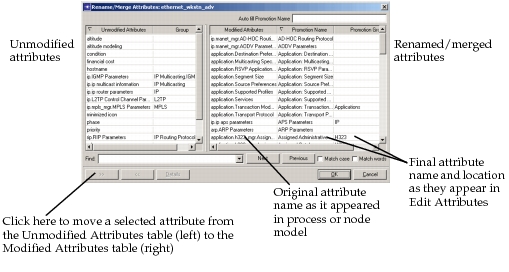
The Rename/Merge Attributes has two tables that list unmodified attributes (left table) and attributes with renamed attribute and/or group names (right table). The modified-attributes table has three columns:
- Modified Attributes (left column) – This shows the original attribute name as it appears in the node or process model. If the attribute is a process attribute associated with a specific module, the name appears as
<module_name>.<attribute_name>. - Promotion Name (center column) – This is the final attribute name as it appears in the Edit Attributes dialog box.
- Promotion Group (right column) – This specifies the group hierarchy for the attribute. You can specify a multi-level hierarchy by entering multiple groups separated by periods (for example,
Protocols.Routing.IP).
- Modified Attributes (left column) – This shows the original attribute name as it appears in the node or process model. If the attribute is a process attribute associated with a specific module, the name appears as
-
If desired, use the Find controls to locate the attribute you want to group.
-
If the attribute you want to group is listed in the Unmodified Attributes table (left), select it and click the shift-right button (>>); this moves the attribute into the Modified Attributes table (left).
-
Specify the final attribute name and group/subgroup location in the Promoted Name and Promoted Group fields.
-
Click OK to close the Rename/Merge Attributes dialog box.
-
Click OK to close the Node Interfaces dialog box.