Model Directory (op_models)
The models you develop are stored in one or more directories called user model directories. The “mod_dirs” preference is stored in your preferences file (<HOME>/op_admin/opnet-<rel>.prefs) and lists all model directories that are visible to Modeler. The directories listed in your mod_dirs generally fall into one of two categories:
- User model directories, which contain the models that you or other users have created.
As a convenience, Modeler creates a directory named
op_modelsin your user home directory and adds this directory to the “mod_dirs” preference. You can change this after installation, completely removingop_modelsif desired. - Riverbed directories, which contain files that are included in the standard installation. These directories include system and model files (under
<install_dir>/sysand<install_dir>/models, respectively). These directories are described in Installation Directory (<install_dir>).
When the preferences file is first created, it generally lists one user model directory as the first entry in the table. Then it lists all the standard directories in subsequent entries:
Figure 5: Model Directories (mod_dirs) List: Example
"c:\users\modeler_user\op_models",           /* User model directories */
"c:\Riverbed\18.0\sys\lib",                  /* System directories */
"c:\Riverbed\18.0\sys\icons",
"c:\Riverbed\18.0\sys\images",
"c:\Riverbed\18.0\sys\include",
"c:\Riverbed\18.0\sys\imagesmaps",
"c:\Riverbed\18.0\sys\configs",
"c:\Riverbed\18.0\sys\help",
"c:\Riverbed\18.0\sys\utilities",
"c:\Riverbed\18.0\sys\reports\stylesheets",
"c:\Riverbed\18.0\models\std\applications",
"c:\Riverbed\18.0\models\std\atm",        /*Model directories*/
"c:\Riverbed\18.0\models\std\atv",
"c:\Riverbed\18.0\models\std\base",
....
You might find that your list of user model directories grows as you continue to create and save models.There are two primary mechanisms for adding a model directory:
- When you save a file in a directory that is not included in your “mod_dirs” list, Modeler adds the directory automatically.
- You can also add a directory manually by choosing File > Model Files > Add Model Directory.
Project Subdirectories
In contrast with other types of models, a project model has multiple associated files: the project file itself, as well as network scenario files, analysis configurations, output files, and so on. For this reason, the behavior when saving projects differs from the behavior for other types of models.
When you save a new project for the first time—or save an old project with a new name—Modeler does not save the project in the current directory. Instead, it creates a subdirectory (<project_name>.project) and saves all files associated with that project in the subdirectory. This ensures that all files related to a specific project reside in one directory, and that different projects do not share the same directory.
Note: You cannot save other types of files in a project directory (that is, a directory whose ends with “.project”) because project directories are reserved for files created as part of that project.
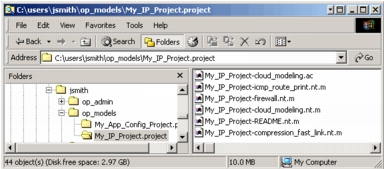
The following figure shows a simple user models directory. The user saved two projects (my_App_Config_project and my_IP_project) in c:\users\jsmith\op_models. As a result, Modeler has created two subdirectories and stored the corresponding project files in these subdirectories.
Figure 6: User Directory with Project Subdirectories
Guidelines for Organizing Your User Files
You can save files in any non-project directory that is visible to your operating system. It is good practice to organize your user models and other files in a consistent manner; this will make it easier to browse, find, and keep track of all your models and other files.
We suggest the following optional guidelines:
- Keep all files under one parent directory. This makes it easier to keep track of all your files—you know that they are all located in that directory—and to move them if necessary.
- Whenever you save a file in a directory that is not listed in your “mod_dirs” list, Modeler adds the new directory to “mod_dirs” automatically. As you add new directories, your models list becomes more complex and potentially harder to navigate. Consider carefully where you want to save a new file. Do you want to add a new, separate directory for this file, or store it with similar files in an existing models directory?
- It might make sense to organize files into separate directories based on model type. The following example shows one possible organization.
Figure 7: User Model Directories List: Example
/* parent directory for all projects */
     c:\users\jsmith\op_models\project_files
     c:\users\jsmith\op_models\project_files\project_1.project
     c:\users\jsmith\op_models\project_files\project_2.project
     ...
/* Transaction Analyzer files for application XYX (all transactions):    */
/* filters, import settings, etc.                              */
     c:\users\jsmith\op_models\Transaction Analyzer\app_XYX
/* Transaction Analyzer files for application XYX (individual transactions):     */
/* capture files, .atc files, etc.                              */
     c:\users\jsmith\op_models\Transaction Analyzer\app_XYX\transaction_1
     c:\users\jsmith\op_models\Transaction Analyzer\app_XYX\transaction_2
     c:\users\jsmith\op_models\Transaction Analyzer\app_XYX\transaction_3
     ...
/* parent directory for Device Creator node models */
     c:\users\jsmith\op_models\device_creator_nodes
     ...
/* parent directory for Model Assistant files (general use) */
     c:\users\jsmith\op_models\ma_files
     ...
Guidelines for Organizing Your Model Directories (mod_dirs) List
The order of directories in the “mod_dirs” list is very important because it determines the precedence of model searches. When Modeler searches for a model, it reads through the directories listed in “mod_dirs” (from top to bottom) until it finds the model. If your model directories contain two models that have the same model type and filename, Modeler always uses the model in the directory that is listed first.
Suppose you have two models named “my_node_model” that are stored in two different model directories. For any node based on “my_node_model,” an analysis or design operation (such as a simulation or flow analysis) uses the model in the first directory and ignores the file in the second directory.
Note: It is good practice to specify a unique name for every file of a specific file type (project, node model, process model, Transaction Analyzer file, and so on). If Modeler notifies you that your model directories contain multiple files with the same file type and name, we recommend that you rename files so that all filenames are unique. This ensures that the wrong model does not get used.
If you want to keep multiple versions of the “same” model in your model directories, you might need to open the “mod_dirs” preference and edit the order of your user model directories. This might occur, for example, if you want to run discrete event simulations for a scenario using different versions of the same node model.
You should observe the following guidelines when organizing your model directories (and icon database directories, which are also listed in “mod_dirs”):
- Do not change the “sys” and “models” sections of the table (that is, the directories beneath
<reldir>/sysand<reldir>/models. Edit only the user model directories at the start of the list. These three sections are illustrated in Figure 5. - Place the directory that takes precedence for new models first in the user model directories list. The first directory in the list is the default models directory; in some cases, Modeler saves new files here automatically, without prompting you for a location. For more information, see Default Model Directory.
- Place more actively used model directories, and directories with custom icon databases, before less actively used directories. This ensures that their contents will take precedence in the event of name conflicts.
- If you have duplicate versions of the same model (same model type and same filename), place the directory with the “highest-priority” models before the other directories. This ensures that any simulation, flow analysis, or other process uses the correct version of that model.
- Place the icon directory (
icons) last in the user model directories section.
Default Model Directory
The default model directory is the first model directory in the “mod_dirs” list. When you save a file, Modeler might simply save the file in the default directory instead of prompting you for a location. If you save a file without getting prompted for a location, and you are not sure where the file got saved, choose Edit > Preferences, open the “mod_dirs” preference table, and check the first directory listed.
This behavior applies to new models only, not to previously saved models: when you save a previously saved model, Modeler writes the file to its original location when the program started or the last time a Refresh Model Directories operation was invoked.
There are some enforced “coupling” relationships between models that can cause new models to be stored in non-default model directories. Model coupling applies to all model types that are derived from other model types. The following table lists model coupling relationships.
Table 6: Model Coupling Relationships
| Source Model | Derivative Model |
|---|---|
| Process Model | Process C or C++ File |
| Process C or C++ File | Process Object Code File |
| Network Model | Simulation Archive |
| Network Model | Simulation C File |
| Network Model | Network Repository |
| Network Repository | Output Vectors |
| Network Repository | Output Scalars |
| Ema Application C or C++ File | Ema Application Object Code File |
| Ema Application Object Code File | Ema Application Executable |