Updating Network Model Drawings with Network Changes
Network model drawings can be updated with changes to a network or with information from a different network.
Updating figures overwrites any changes/modification made to the subnet/showcase figures themselves (i.e., moving the position of a node). However, other manually added figures are retained in updated drawings.
Note: If you have been editing the project from which you want to update the network whiteboard, be sure to save the project before updating the Network Whiteboard. From the Project Editor, choose File > Save.
If the user-defined report table references the document's network (which they will by default), they will be updated when the document's network is changed.
Procedure 196: Updating Network Model Drawings
-
Open the Network Whiteboard that you want to update.
-
Choose Network > Set Document Network.
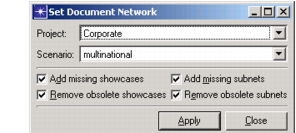
Result: The Set Document Network dialog box appears.
Figure 181: Set Document Network Dialog Box
-
Specify the requested information.
Table 90: Set Document Network Dialog Box
Option Description Project/Scenario Specifies the project and scenario from which to update the network drawings. By default, the last project/scenario used to create or update the network drawings is selected. Add missing subnets Specifies to add subnets that exist in the project/scenario that are not already included in the network drawings. Remove obsolete subnets Specifies to remove subnets that exist in the network drawing but not in the selected project/scenario. Add missing showcases Specifies to add showcases that exist in the project/scenario that are not already included in the network drawings. Remove obsolete showcases Specifies to remove showcases that exist in the network drawing but not in the selected project/scenario. -
Select Apply.
Result: The Document Network Set message box appears listing obsolete/missing showcases and subnets and whether the showcase/subnet was removed or added.
-
Click OK to close the Document Network Set message box.
-
Either update the network drawing with another project/scenario or click Close to close the Set Document Network dialog box.