Exporting Network Topology to Network Whiteboard
You can easily export your network topology to Network Whiteboard.
Procedure 192: Exporting a Network Topology to Network Whiteboard
-
Choose Topology > Export Topology > To Network Whiteboard…
-
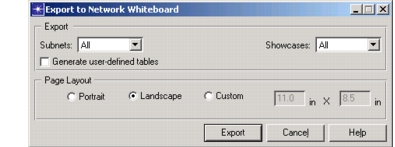
The Export to Network Whiteboard dialog box appears.
Figure 180: Export to Network Whiteboard Dialog Box
-
Specify the requested information:
Table 89: Export to Network Whiteboard Dialog Box
Option Description Subnet Specifies the subnet(s) to export to Network Whiteboard. Choose:
- None
- Current
- AllShowcase Specifies the showcase(s) to export to Network Whiteboard. Choose:
- None
- Current
- AllGenerate user-defined tables Specifies that full user-defined report tables should be exported to separate document pages. A subsequent dialog box opens for you to select reports. Page Layout Specifies the page orientation and size. Choose:
- Portrait – Specifies 8.5 x 11 inches
- Landscape – Specifies 11 x 8.5 inches
- Custom – Specifies a custom size. When selected, specify the height and width. -
Click Export. If Generate user-defined tables is selected, the Generate User-Defined Report dialog box appears. Select the tables to export and click Generate.
Result: The Network Whiteboard Editor appears with the exported topology.