Automating Network Difference Reports
Automated Network Difference Reports provide periodic reporting on scenario changes. The most widely-used configuration for Network Differences is to show the changes from one scenario to the next. Other variations include comparing a weekly or a “gold” standard scenario to the scenario created after a periodic import.
For more information, see:
- Saving a Network Difference Report Automation File
- Reporting on Changes from One Scenario to the Next
- Other Variations of Network Difference Reports
Saving a Network Difference Report Automation File
By clicking the automation button in the lower-left corner of the Configure/Run Network Difference Report, you can save the current configuration of the dialog box as a file for automation.
Note: In analysis software versions previous to 14.0, there is a separate dialog box for configuring Network Difference Reports for automation.
For more information, see the following figure.
Figure 15: Saving a Network Difference Report Automation File
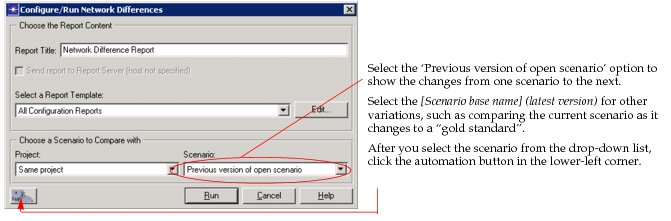
Key Concept—When you use a Network Difference Report automation file, the “Current” scenario becomes the scenario open during the automation step.
For more information, see:
Reporting on Changes from One Scenario to the Next
This report is configured by default in the Network Difference Report > Generate Report > Configure/Run Network Differences dialog box. To verify the correct settings, perform the following procedure.
Procedure 2: Configuring Automation for Reporting on Changes from One Scenario to the Next
- Choose Scenarios > Network Difference Report > Generate Report.
- Select “Same project” and “Previous version of the open scenario” from the “Previous” drop-down lists.
- Click the automation button in the lower-left corner.
- Browse to the directory where you want to save the automation file.
- Name the file and then save.
- You can use this file when you configure automation for Network Difference Reports comparing one scenario to the next.
For more information, see:
Other Variations of Network Difference Reports
The following variations are best described by assuming that you create a new scenario after each daily import of the network model.
Dynamic Previous Scenario: A Scenario Created Weekly Compared to a Scenario Created Daily
You can report on the changes that occur each day compared to a scenario created at the beginning of each week. This comparison is considered dynamic because the “previous” scenario changes over time. You can configure automation to compare the “dynamic” scenario imported weekly to the daily import of the scenario with the same base name.
Note: You can compare any two dynamic scenarios, such as a monthly scenario compared to a daily scenario, or a weekly scenario compared to a yearly scenario.
Procedure 3: Configuring Automation for a Scenario Created Weekly Compared to a Scenario Created Daily
- Choose Scenarios > Network Difference Report > Generate Report.
- Select “Same project” and “[Scenario base name](latest version)” from the “Scenario” drop-down lists.
- Click the automation button in the lower-left corner.
- Browse to the directory where you want to save the automation file.
- Name the file and then save.
- You can use this file when you configure automation for Network Difference Reports comparing a dynamic scenario with the changing current scenario.
Static Previous Scenario: A Gold Standard Scenario Compared to a Scenario Created Daily
You can report on the changes that occur each day compared to a static, “gold standard” scenario. This option compares the changing scenario of the same base name to a static scenario. The following procedure describes how to configure automation to compare the current changing scenario to the “gold standard” scenario.
Procedure 4: Configuring Automation for a Gold Standard Scenario Compared to a Scenario Created Daily
- Identify or create the scenario you want as the gold standard.
- Choose Scenarios > Network Difference Report > Generate Report.
- Select the gold standard project and “[Scenario base name](lastest version)” in the drop-down lists.
- Click the automation button in the lower-left corner.
- Browse to the directory where you want to save the automation file.
- Name the file and then save.
- You can use this file when you configure automation for Network Difference Reports for comparing a static scenario with the changing current scenario.