Visualizing the Multicast Tree
Discrete Event Simulation
Procedure 57: Visualizing the Multicast Tree (Discrete Event Simulation)
-
Choose Protocols > IP > Demands > Display Routes for Configured Demands…
-
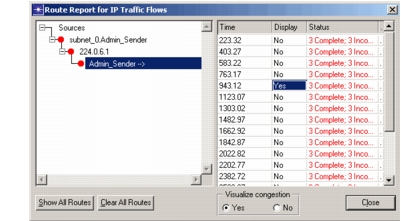
Select a demand and set the Display column to “Yes” for the desired time.
Figure 232: Using Display Routes for Configured Demands
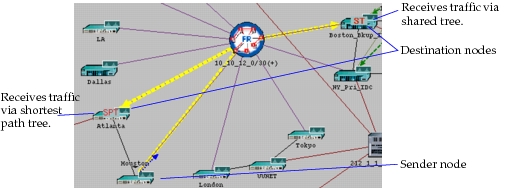
Result: This operation draws the routes in the workspace and uses icons to indicate the destination nodes that listen to the multicast group. Additional icons for shared tree and shortest path tree indicate the type of tree that was used. Unlike flow analysis, discrete event simulation shows only the tree type that was used to send traffic to the destination.
Figure 233: Visualizing Multicast Routes for Discrete Event Simulation
End of Procedure 57
If you are sending multicast traffic over broadcast media, some demands might contain routes that are not routed. This is because multicast packets in Riverbed Modeler are broadcast on Layer-2. When a router or host receives a packet that is not destined for it, the router or host destroys the packet. In this case, Riverbed Modeler writes a message indicating the number of successful and unsuccessful routes.