Displaying Trailing and Decal Effects
3D Network Visualizer supports trailing effects such as contrails for missiles and aircraft and dust clouds for vehicles. It also supports decal effects, such as tire tracks, footprints, and wakes. In essence, trailing effects are effects that are dispersed through the air, while decal effects are effects that are printed on the ground.
Trailing effects and decal effects are properties of an observer mode. You can enable and disable them on a per-observer basis.
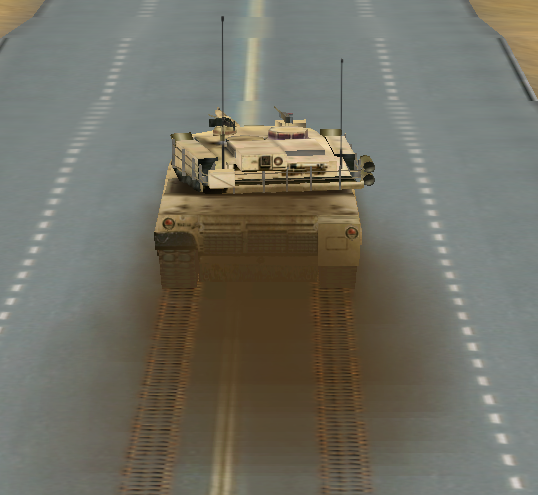
Figure 64 illustrates some trailing effects.
Figure 64: Tank tracks, dust cloud
Procedure 75: Enabling or Disabling Trailing Effects or Decal Effects
-
Choose Settings > Display. The Display Settings dialog box opens.
-
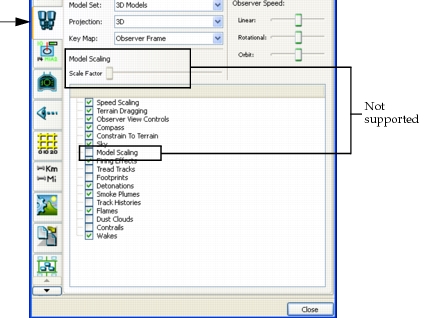
Select the Observer Settings page (Figure 65).
Figure 65: Display Settings dialog box, Observer Settings
-
Select or clear the checkbox for each effect that you want to change.
Note: You can also enable and disable trailing and decal effects by choosing Observer > effect or by clicking the appropriate icon on the Observer Settings toolbar.
Specifying Models for Trailing Effects and Decal Effects
Trailing effects and decal effects are configured through model definitions. (For the purposes of configuration, trailing effects are categorized as decals.) Each effect must have a model definition that uses a decal schema. Then, in an entity’s entity definition, you configure a visualizer for the effect. For details about creating model definitions, please see “Creating and Editing Model Definitions“ on page 328.