Trajectory Smoothing
From the time 3D Network Visualizer receives a state update message for an entity, until it receives the next update, it calculates the location of the entity based on the heading and acceleration in the most recent state update. This process is called dead-reckoning. When the next state update arrives for the entity, 3D Network Visualizer moves it to the new position. If the actual position is significantly different from the dead-reckoned position, the entity could appear to jump from the dead-reckoned position to the actual position. 3D Network Visualizer can eliminate these discontinuities by smoothing entity trajectories and rotation paths.
Figure 62 illustrates dead-reckoning and smoothing.
Figure 62: Dead-reckoning and smoothing
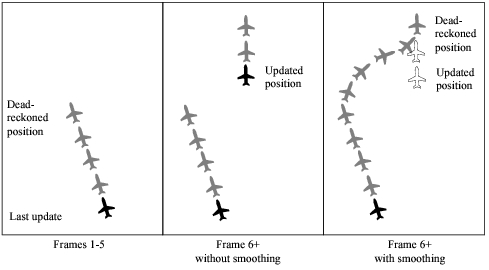
The smooth period is the period of time over which smoothing takes place. The default period is 1/10 second. If course corrections appear abrupt with this setting, you may want to increase the smooth period.
Note: Smoothing makes fast-moving entities, such as fixed wing aircraft, look better. Slow moving entities, such as dismounted infantry, may look worse. If your simulation is mostly one or the other of these types of entities, enable or disable smoothing as appropriate for the best visualization experience.
Configuring Trajectory Smoothing
Procedure 74: Configuring Trajectory Smoothing
-
Choose Settings > Display. The Display Settings dialog box opens.
-
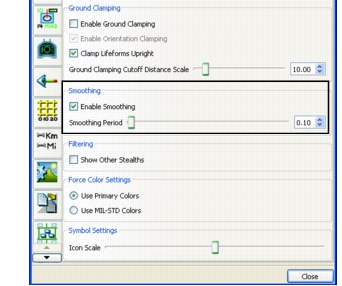
Select the Entity Display Settings page. Smoothing settings are in the Smoothing group box (Figure 63).
Figure 63: Smoothing settings
-
To enable or disable smoothing, select or clear the Enable Smoothing checkbox.
-
To change the smooth period, adjust the Smoothing Period slider or type a value, in seconds, in the spinner box.