Displaying HAT Lines for Entities
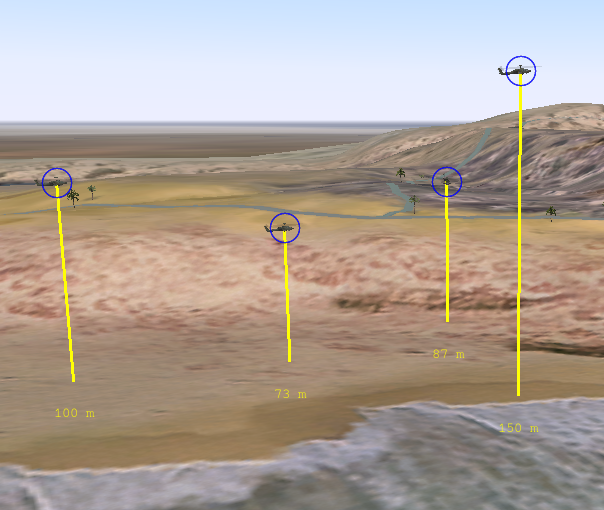
Height-above-terrain (HAT) lines are vertical lines that run from an entity to the ground and display the altitude of the entity (using whatever units are configured on the Display Units Settings page) (Figure 72). They help you understand the relationship of the entity to the terrain.
HAT lines are shown only for entities that could be above or below the ground, such as fixed and rotary-wing vehicles. You can show and hide these lines globally and you can specify that they be shown only for the selected entities.
Figure 72: Entity height-above-terrain lines
Note: Displaying height above terrain lines can reduce the frame rate.
Procedure 83: Showing or Hiding Height-Above-Terrain Lines
- Choose Settings > Display. The Display Settings dialog box opens.
- Select the Entity Display Settings page.
- To display lines, select the Enable Height Above Terrain Lines checkbox.
- To display lines only for selected objects, select the Only Display Height Above Terrain Lines For Selected Entities checkbox.
Note: You can also enable and disable entity HAT lines by choosing Settings > Entity Height Above Terrain Lines or by clicking the Entity Height Above Terrain Lines icon (
) on the Display Settings Toolbar.