Filtering Entities Using Interest Management
3D Network Visualizer can use interest management to improve its performance in simulations that have high entity counts. Interest management is an implementation of HLA data distribution management (DDM). When interest management is enabled, 3D Network Visualizer filters out all entities that are more than a specified distance from the observer.
Enabling Interest Management
To use interest management:
- If you are using the MÄK RTI, you must use MÄK RTI 3.4a or later.
- You must configure your RTI to support DDM. (If you are using the MÄK RTI, you can configure your system to use
ddm-rid.mtl, which has DDM enabled.) - When you connect to an exercise, you must enable DDM in the connection settings.
Procedure 87: Enabling Interest Management
- Choose Settings > Connection. The Connection Settings dialog box opens.
- Select the HLA 1.3 page or the HLA 1516 page.
- Set Implicit Geographic DDM to Enabled.
- Specify any other information required for the simulation.
- Click Connect.
Configuring Interest Management
Interest management works by filtering out all entities beyond a specified distance from the observer. You can configure this distance (DDM region size) and you can configure the threshold for observer movement (region update threshold) before 3D Network Visualizer recalculates which entities should be displayed.
3D Network Visualizer uses a geographic DDM scheme. The earth is divided into two dimensional regions, with X pointing north and Y pointing east. When you specify a DDM region size, you specify the length of one side of a region.
The region update threshold is a percentage of the distance from the center of the region to a side. When the observer moves beyond the threshold, the region is recalculated. For example, if the region size is 1000 meters, the distance from the center to a side is 500 meters. If the region update threshold is 50%, when the observer moves more than 250 meters from the center of the region, 3D Network Visualizer recalculates the display region.
Procedure 88: Configuring Interest Management
-
Choose Settings > Display. The Display Settings dialog box opens.
-
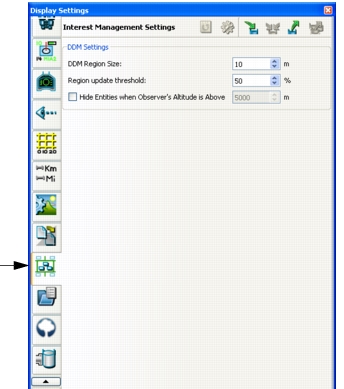
Select the Interest Management Settings page (Figure 74).
Figure 74: Interest Management Settings page
-
In the DDM Region Size box, type a value, in meters, for the region size.
-
In the Region Update Threshold box, type a value, as a percentage, for the update threshold.
-
Optionally, filter entities based on the observer’s altitude, as follows:
5.1 Select the Hide Entities When Altitude Higher Than checkbox.
5.2 Specify the observer altitude at which to hide entities.
For more information about filtering entities based on observer altitude, please see Filtering Entities by Observer Altitude.
-
Click OK.
Filtering Entities by Observer Altitude
DDM regions use a two-dimensional grid, so the altitude of the observer is not considered when filtering entities. However, in 3D observer mode, you usually cannot see entity models once the observer is a certain distance above the terrain (although you can see entity labels). Therefore, you may want to filter out entities based on the observer’s altitude, thereby increasing performance.