Using the 2-D Animation Viewer
You run 2-D animation by choosing Play 2D Animation from the DES menu or by typing the following on the command-line prompt:
op_vuanim
The animation viewer, which looks similar to the Modeler main window, opens in a separate window. The toolbar of the animation viewer contains buttons that look like typical VCR controls and have some of the same functions—play, pause , stop, restart, speed up, slow down, and skip to next.
In the animation viewer, you can view “real time” animation during a simulation run or you can load and view animation history files that were recorded during previous simulation runs; in both cases, you can use different viewer operations to control how animation data is displayed.
Figure 1: op_vuanim Environment with Animation Viewer
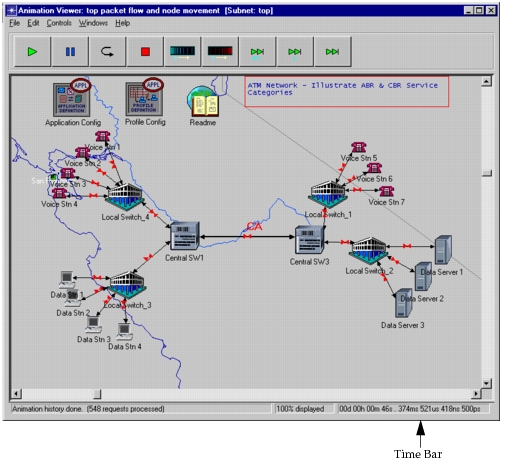
The largest area of the display—the animation viewing area—is where you can load and view animations. Animations are displayed in windows called viewers. A viewer is a rectangular region with an internal coordinate system. Viewer windows can be manipulated using the standard GUI operations for moving, resizing, scrolling, and circulating editor windows.
Viewers may occupy some or all of the animation viewing area and there may be several viewers open simultaneously. The size of a viewer determines the rectangular region of the viewer’s coordinate system that is visible, but it does not limit graphical operations from being performed outside of this visible region.
Across the bottom of each viewer window is a time bar that displays the current simulation time (in days, hours, minutes, seconds, milliseconds, microseconds, nanoseconds, and picoseconds). The foreground viewer will always display the current simulation time. Viewers that are “frozen” in the background will have their simulation time paused. The time is automatically updated whenever they become active again.