Displaying Shadows
3D Network Visualizer can display shadows for entities. Shadows are cast only on the terrain. They are not cast on buildings (props) or on other entities. Therefore, for example, entities on an aircraft carrier do not cast shadows on the deck.
You can enable and disable shadows and you can configure shadow quality. By default, fixed-wing, rotary-wing, and DI-Guy entities cast shadows. You can configure other entities to cast shadows by setting the shadowCaster attribute in their model definitions to 1. (For information about model definitions, please see Chapter 22 “Model and Element Definitions” on page 323.)
Note: Updated model definitions do not take effect immediately. To view shadows, you must shut down 3D Network Visualizer, restart 3D Network Visualizer, and connect to the simulation.
Procedure 84: Enabling and Disabling Shadows Globally
-
Choose Settings > Display. The Display Settings dialog box opens.
-
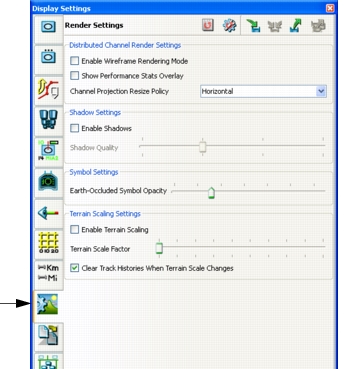
Select the Render Settings page (Figure 73).
Figure 73: Display Settings, Render Settings page
-
In the Shadow Settings group box, select or clear the Enable Shadows checkbox.
Note: You can also enable and disable shadows by choosing Settings > Shadows or clicking the Shadows icon (
) on the Display Settings Toolbar.
Configuring Shadows
You can configure the quality of shadows. To use this feature you must have high quality hardware.
Procedure 85: Configuring How Shadows Are Rendered
- Choose Settings > Display. The Display Settings dialog box opens.
- Select the Render Settings page (Figure 73).
- Select Enable Shadows. The Shadow Quality slider becomes enabled.
- Adjust the Shadow Quality slider.