Using Ground Clamping
Because of differences in terrain databases among exercise participants, entities can sometimes appear to be underground or hovering above the terrain surface. To compensate, 3D Network Visualizer can clamp land and sea entities to the terrain surface. When ground clamping is enabled, 3D Network Visualizer keeps an entity anchored to the terrain surface regardless of the altitude data contained in its state update.
Note: Use of ground clamping can reduce your frame rate. If you correlate the simulation and visualization terrain databases, you can eliminate the need to use ground clamping.
Procedure 72: Enabling or disabling ground clamping
-
Choose Settings > Display. The Display Settings dialog box opens.
-
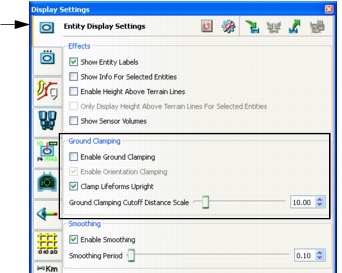
Select the Entity Display Settings page (Figure 61).
Figure 61: Ground clamping settings
-
Select or clear the Enable Ground Clamping checkbox.
Note: You can also enable and disable ground clamping by choosing Settings > Ground Clamping or by clicking the Ground Clamping icon (
) on the Display Settings Toolbar.
Configuring Ground Clamping
You can configure the following aspects of ground clamping:
- Enable or disable ground clamping
- Enable or disable orientation clamping
- Force lifeforms to remain upright relative to the plane of their location when moving up slopes or steps, rather than being perpendicular to the terrain
- The distance from the terrain within which entities are clamped.
Procedure 73: Configuring Ground Clamping
- Choose Settings > Display. The Display Settings dialog box opens.
- Select the Entity Display Settings page (Figure 61).
- To enable or disable a ground clamping option, select or clear its checkbox.
- To specify the distance from the terrain in which entities are ground clamped, adjust the Ground Clamping Cutoff Distance Scale slider or type a value, in meters, in the spinner box. You can also access the Ground Clamping Cutoff Distance Scale slider by clicking the down arrow next to the Ground Clamping icon (
 ) on the Display Settings Toolbar.
Note: The setting for the Ground Clamping Cutoff Distance Scale maximizes at 100 meters. If you set it to the maximum, the distance is infinite and all entities are ground-clamped.