Creating and Editing Model Definitions
Each model displayed in 3D Network Visualizer is defined by a set of parameters that are appropriate to the model type. (The parameters are specified in the model’s schema. For information about model schema, please see Creating and Editing Schemas.) 3D Network Visualizer comes with an extensive set of model definitions that are mapped to the included models. You can edit or delete these model definitions and you can create new ones.
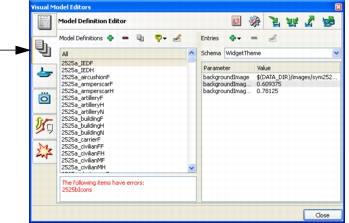
All model configuration is done in the Model Definition Editor page of the Visual Model Editors dialog box (Figure 108). The icons all have tooltips. For more information, please see “Managing 3D Network Visualizer Settings“ on page 126 and “Common 3D Network Visualizer Icons“ on page 542.
Figure 108: Model Definition Editor page
Creating a Model Definition
Procedure 124: Creating a Model Definition
-
Choose Settings > Visual Model Editors. The Visual Model Editors dialog box opens.
-
Select the Model Definition Editor page (Figure 108).
-
Optionally, filter the model definitions in the list. (For details, please see Filtering the List of Model Definitions.)
-
Click the Add icon (
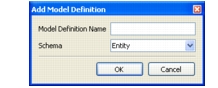
 ) next to the Model Definitions label. The Add Model Definition dialog box opens (Figure 109).
Figure 109: Add Model Definition dialog box
-
Type a name for the new model definition.
Note: Model definitions for DI-Guy characters must end with the letters DIG. Model definitions for SpeedTrees must end in ST.
-
In the Schema drop-down list, select a schema for the model. (This list matches the list of schemas on the Schemas page.)
-
Add parameters to the model, as described in Adding Parameters to a Model Definition.
Deleting a Model Definition
Note: If a model definition is being used, you cannot delete it.
Procedure 125: Deleting a Model Definition
- Choose Settings > Visual Model Editors. The Visual Model Editors dialog box opens.
- Select the Model Definition Editor page (Figure 108).
- Optionally, filter the model definitions in the list. (For details, please see Filtering the List of Model Definitions.)
- Select the model that you want to delete.
- Click the Delete icon (
 ) next to the Model Definitions label. You are prompted to confirm the deletion.
- Click Yes. The model definition is removed from the list.
Copying a Model Definition
If you want a new model that is a variant of an existing one, it can be easier to copy the existing model and edit it, than to create a new model and add all of the parameters.
Procedure 126: Copying a Model Definition
-
Choose Settings > Visual Model Editors. The Visual Model Editors dialog box opens.
-
Select the Model Definition Editor page (Figure 108).
-
Optionally, filter the model definitions in the list. (For details, please see Filtering the List of Model Definitions.)
-
Select the model that you want to copy.
-
Click the Duplicate icon (
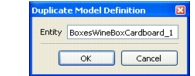
 ). The Duplicate Model Definition dialog box opens (Figure 110).
Figure 110: Copy model definition
-
Type a name for the copied version of the model.
-
Click OK.
-
The new model definition is added to the list.
-
Edit the parameters as described in Editing a Model Definition.
Filtering the List of Model Definitions
By default, the Model Definition Editor page lists all models that 3D Network Visualizer knows about. You can filter the list to more easily work with a specific type of model.
To filter the list of model definitions, click the Filter icon ( ) and select a schema type from the list.
Editing a Model Definition
You can add parameters to a model definition, you can delete parameters, and you can change their values. You can only add parameters that are appropriate to the schema type for a model.
Note: If you change the model definition for an entity that is already in the scene, the updated definition is not applied to the entity. To apply an edited model definition to all entities, disconnect from the exercise and then reconnect.
Adding Parameters to a Model Definition
When you create a new model definition, you must specify the parameters required by its schema. You can only add parameters that are permitted by the schema.
Procedure 127: Adding a Parameter to a Model
-
Choose Settings > Visual Model Editors. The Visual Model Editors dialog box opens.
-
Select the Model Definition Editor page (Figure 108).
-
Optionally, filter the model definitions in the list. (For details, please see Filtering the List of Model Definitions.)
-
Select the model for which you want to add a parameter.
-
Click the Add Parameter icon (
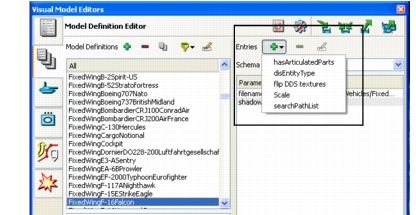
 ). A list of parameters is displayed (Figure 111).
Figure 111: Add parameter list
-
Select the parameter you want to add. It is added to the parameter list.
-
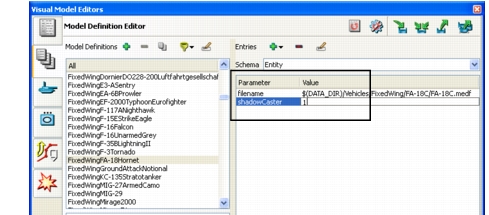
Click the value for the parameter. The field becomes editable (Figure 112).
Figure 112: Editable parameter
-
Type a value for the parameter.
-
Click away from the field.
Editing a Model Definition Parameter
Procedure 128: Editing a Model Definition Parameter
- Choose Settings > Visual Model Editors. The Visual Model Editors dialog box opens.
- Select the Model Definition Editor page (Figure 108).
- Optionally, filter the model definitions in the list. (For details, please see Filtering the List of Model Definitions.)
- Select the model for which you want to edit a parameter.
- Click the value for the parameter you want to edit. The field becomes editable (Figure 112).
- Type a value for the parameter.
- Click away from the field.
Deleting Parameters from a Model Definition
Note: If you delete a parameter from a model definition, the definition may become invalid. Invalid model definitions are shown in red.
Procedure 129: Deleting a Parameter from a Model
- Choose Settings > Visual Model Editors. The Visual Model Editors dialog box opens.
- Select the Model Definition Editor page (Figure 108).
- Optionally, filter the model definitions in the list. (For details, please see Filtering the List of Model Definitions.)
- Select the model from which you want to delete a parameter.
- Select the parameter that you want to delete.
- Click the Delete icon () next to the Entries label. The parameter is removed.
Saving Model Definitions
Like all 3D Network Visualizer settings, when you change a model definition, the change is automatically saved. You can also use the common settings management controls for exporting, loading, and merging settings. For details about the common settings, please see “Managing 3D Network Visualizer Settings“ on page 126.