Random Mobility
Trajectories and orbits specify deterministic paths for mobile sites. To model random movement, you can use the random mobility feature. Random mobility lets you define a rectangular region in which a site will move during a simulation. You can define this region by specifying x-y coordinates or by using a mobility domain (a special kind of wireless domain). During simulation, the site randomly selects a destination in the region and moves toward it at a specified or randomly chosen speed. Upon reaching its destination, the site pauses a configurable length of time before it repeats the process by selecting another random destination.
A mobility configuration object holds random mobility parameters as profiles, making it easy to reuse them. Profiles are applied to specified sites using a menu operation. Even if multiple sites in a network use the same profile, their movements will be different because the destination for each site is chosen randomly and independently.
Note: The parent subnet of any subnet containing a site using random mobility must use units of degrees. (See “Set Background Properties” on page 145 for information about changing the units for a subnet.)
Using Random Mobility
The basic workflow for configuring random mobility in a network is as follows:
- Define a mobility domain (if needed).
- Define a mobility profile.
- Assign the profile to a mobile site.
You can use the following procedures to do the steps of this workflow.
Procedure 8: Configuring Random Mobility Profiles
-
Drag a Mobility Config object into the project workspace from the MANET object palette. (One config object can hold multiple profiles.)

-
Open the Attributes dialog box of the Mobility Config object.
-
Edit the Random Mobility Profiles attribute. You can either change the parameters of one of the supplied profiles or create a new profile by adding a row and setting the Profile Name attribute.
-
Edit the Random Waypoint Parameters attribute for the profile you are configuring, as follows:
4.1 Specify the region to be used by the profile in one of the following ways:
- Mobility domain – Set the Mobility Domain Name attribute to the name of a mobility domain. If necessary, follow [Procedure 10](wm-13-mod-87-17.md) to define a domain.
- Coordinates – Set the x_min, y_min, x_max, and y_max attributes. These attributes specify the bounds of the region relative to the upper-left corner of the subnet containing the mobile site. The Mobility Domain Name attribute must be set to “Not Used”.
4.2 Set the following attributes as desired: Speed, Pause Time, Start Time, and Stop Time.
Note: No movement occurs if the Speed or Start Time attributes are set to “None”.
Note: The Speed attribute takes values in meters per second. If you intend to watch site movement in the Animation Viewer, be sure to set a value that is consistent with the subnet units. For example, a speed of 5 m/s will show very little movement if the subnet units are degrees or kilometers.
-
If you intend to watch site movement in the Animation Viewer, configure the Animation Update Frequency attribute.
-
If you want to record the random path generated by this profile as a trajectory, set the Record Trajectory attribute to Enabled. (See Creating Random Trajectories for details on this feature.)
-
Click OK to save the parameters and close the Attributes dialog box.
Procedure 9: Applying a Mobility Profile to One or More Sites
-
Select one or more sites (nodes and subnets) to which you want to apply a particular mobility profile.
-
Choose Topology > Random Mobility > Set Mobility Profile…
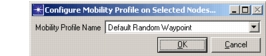
The Configure Mobility Profile on Selected Nodes dialog box opens.
-
Select the desired mobility profile from the Mobility Profile Name pull-down menu, then click OK.
The Mobility Profile Name attribute is added to the sites (if not already present) and is set to the selected profile.
Note: Because the Set Mobility Profile… operation adds a new attribute, you must use it when applying a mobility profile to a site for the first time. After the Mobility Profile Name attribute has been added, you can change its value by using the Set Mobility Profile… operation again or by editing the site’s Attributes dialog box.
Procedure 10: Defining a Mobility Domain
-
In the MANET object palette, click on the Mobility Domain icon.
-
In the project workspace, click at the upper-left corner of the region you want to define.
-
Drag the cursor to the lower-right corner of the desired region and click again to finish defining the region.
The mobility domain appears as a blue rectangle in the workspace. A default name appears in the upper-left corner, in red.
-
Repeat steps 2–3 to define another region, or right-click to finish the operation.
-
Use the selection dots on the sides and corners of the mobility domain to resize it, if necessary.
-
Set the Name attribute in the Attributes dialog box of the mobility domain.
Creating Random Trajectories
In some cases, you might want to repeat the random path followed by a mobile node. This can be useful for comparing simulation results. Random mobility lets you record the path generated during a simulation and apply that path as a trajectory in later simulations.
If the Record Trajectory attribute of a random mobility profile is set to Enabled, Riverbed Modeler creates trajectory files during simulation, one file for each site using that profile. Each trajectory file contains a list of the coordinates traversed by a site. The trajectory files are named <project-scenario>-<node_name>.trj and placed in the default model directory.
Although you can assign these trajectories to sites exactly as you would a trajectory you created yourself, there is a faster way, described in the following procedure.
Procedure 11: Assigning Random Trajectories to One or More Sites
-
Select the mobile sites to which you want to apply random trajectories. To apply trajectories to all mobile sites, leave them all unselected.
-
Choose Topology > Random Mobility > Set Trajectory Created From Random Mobility…
For each selected site (or all sites), Riverbed Modeler looks for a random trajectory from the current scenario and, if found, applies it to the corresponding site.