Editing Segment-Based Trajectories
You can edit a segment-based trajectory within modeler by using the following procedure. It is also possible to edit a trajectory (.trj) file directly in a text editor.
Procedure 3: Editing a Trajectory
Note: Editing a trajectory file changes the trajectory for all nodes that use it. To edit the trajectory for a specific site only, save the trajectory with a different name and then edit the site’s trajectory attribute to use the new trajectory name.
-
Do one of the following:
- Right-click on a trajectory and choose Edit Trajectory.
- Right-click on a mobile site that has an assigned trajectory and choose Edit Trajectory.
- In the Attributes dialog box of a mobile site with an assigned trajectory, click on the value of the “trajectory” attribute and select Edit…
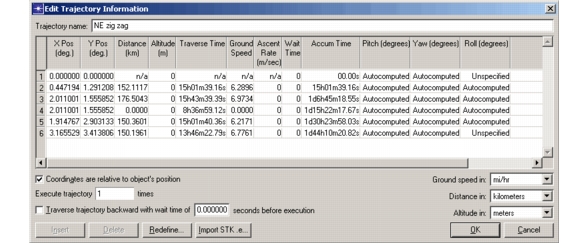
The Edit Trajectory Information dialog box opens.
Figure 11: Edit Trajectory Information Dialog Box
-
Edit the trajectory points as needed, referring to Table 4: Trajectory File Fields for details on the valid values for each field. Also, note the following:
- The Traverse Time and Ground Speed values are linked. If you change one, the other will be recomputed to match.
- The Altitude and Ascent Rate values are linked. If you change one, one or more of the other will be recomputed to match.
-
(Optional) Use the controls in the lower left to modify the overall trajectory or specify how sites follow it:
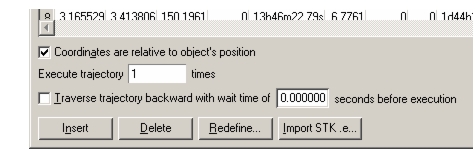
- “Coordinates are relative…” checkbox – Specifies the trajectory’s coordinate_method.
- “Execute trajectory x times” field – Specifies a repeat count for the trajectory (described in Options for Following a Segment-Based Trajectory).
- “Traverse trajectory backward…” checkbox and field – Specify reverse movement along the trajectory and a wait time at the turnaround point (described in Options for Following a Segment-Based Trajectory).
- “Insert” and “Delete” buttons – Change the number of points in the trajectory.
- “Redefine” button – Lets you redraw the trajectory using the workflow described in Procedure 2: Defining a Segment-Based Trajectory. The redrawn trajectory replaces the one you are editing.
- “Import STK .e…” button – Lets you replace the trajectory with one imported from an STK ephemeris (.e) file. See Importing STK Ephemeris Files for details.
-
When you finish editing the trajectory, click OK.
-
Click OK to confirm overwriting the existing file with the changes.
You can edit a trajectory path in the Project Editor in much the same way as redefining link paths. You can reshape a trajectory by dragging existing turning points to new positions, create new turning points and segments, or combine adjacent segments by deleting the turning point between them. Visual editing makes it easier to create a trajectory that follows a specific path on a map or over terrain.
Procedure 4: Editing a Trajectory Path
-
Left-click a trajectory to select it (the path becomes dashed), pause a second, then left-click again.
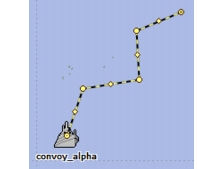
The trajectory is placed in path edit mode.
Figure 12: Trajectory in Path Edit Mode
-
Edit the path in any of the following ways:
- To move a point: click and drag a turning point (circle) to a new position.
- To add a point: click and drag a segment marker (diamond) to a new location. This adds a new point to the trajectory, breaking the original segment into two new segments. The new segments each use the speed of the original one.
- To delete a point: click and drag a turning point (circle) until the two adjacent segments form a straight line. This deletes the point, combining the two adjacent segments into one new segment. The new segment takes its speed from the first of the two original segments.
Note: Trajectory segments appear as straight lines while you are drawing them, but are replaced by great circle paths in the completed trajectory. This is noticeable only for very long segments.
-
When you are finished, click in the workspace to exit from path edit mode.
-
If you need to make changes to the traverse time of new or modified segments or fine-tune the trajectory in other ways, follow Procedure 3: Editing a Trajectory.