Displaying Feature Data
If a terrain contains feature data, you can display it in the Plan View observer mode. Figure 72 shows a section of the Little Pond terrain with features disabled and enabled.
Figure 72: Feature data
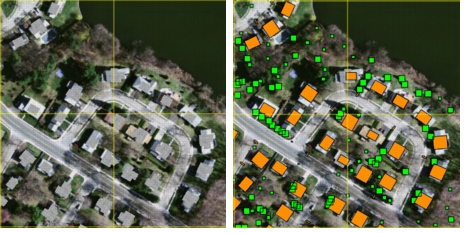
To display feature data, choose Observer > Features, or click the Feature Data icon ( ) on the Observer Settings Toolbar.
Displaying a List of Vector Features
If a terrain has vector features, they are listed on the Vector Network tab of the Terrain Panel. If you select a feature in the list, it is highlighted in the display, and vice versa (Figure 73).
Figure 73: Vector feature selected
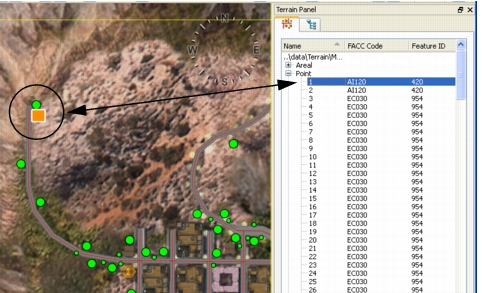
Procedure 49: Displaying the Feature List
-
Choose View > Terrain Panel.
The Terrain Panel opens.
-
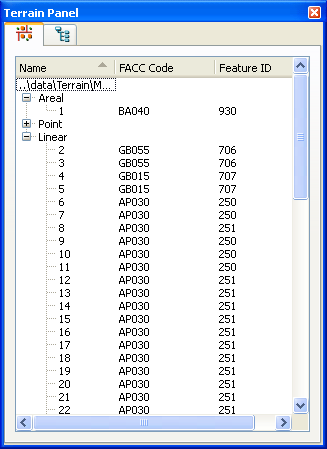
Select the Vector Network tab (Figure 74).
Figure 74: Terrain Panel, Vector Network tab
-
Expand the top-level categories to see the lists of individual features.
Changing the Colors Used for Feature Data
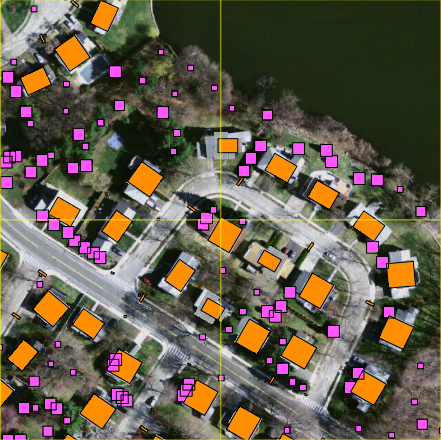
If a terrain database contains feature data, you can change the colors used to display it. In Figure 75, we have changed the Woodland feature in the Little Pond terrain to be pink. Compare it to the default color (Figure 72).
Figure 75: Feature data with color change
Procedure 50: Changing the Color of Feature Data
-
Choose Settings > Terrain.
The Terrain Settings dialog box opens.
-
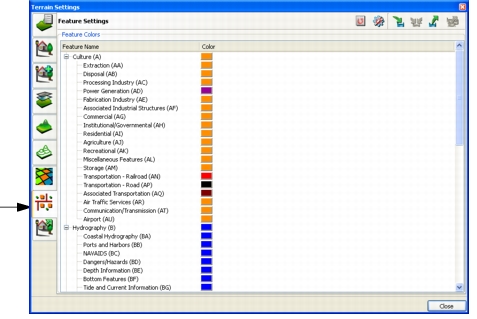
Select the Feature Settings page (Figure 76).
Figure 76: Feature Settings page
-
Click the color swatch for the feature that you want to change.
A color picker dialog box opens.
-
Select the color that you want to use.
-
Click OK.