Displaying Contour Lines
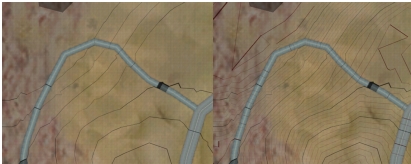
You can display contour lines and intermediate contour lines on the terrain. Intermediate contour lines divide the contour line interval into fifths (Figure 81). You can configure the thickness of contour lines and the interval between them.
Figure 81: Contour lines and intermediate contour lines
Procedure 57: Displaying Contour Lines
-
Choose Settings > Terrain. The Terrain Settings dialog box opens.
-
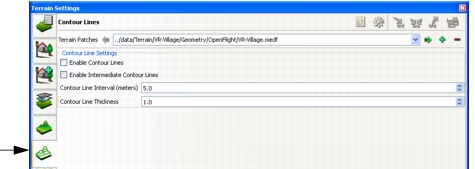
Select the Contour Lines Settings page (Figure 82).
Figure 82: Contour Lines Settings page
-
In the Terrain Patches list, select the terrain patch for which you want to enable or disable the display of contour lines.
-
Select Enable Contour Lines.
-
To enable intermediate contour lines, select Enable Intermediate Contour Lines.
Configuring Contour Lines
You can configure the thickness of contour lines and the interval between them.
Procedure 58: Configuring Contour Lines
- Choose Settings > Terrain. The Terrain Settings dialog box opens.
- Select the Contour Lines Settings page (Figure 82).
- In the Terrain Patches list, select the terrain patch for which you want to configure the thickness and interval of contour lines.
- In the Contour Line Interval text box, specify the distance, in meters, between contour lines.
- In the Contour Line Thickness text box, specify the thickness, in pixels, for contour lines.