Configuring Visible Surfaces (GDB Soil Types)
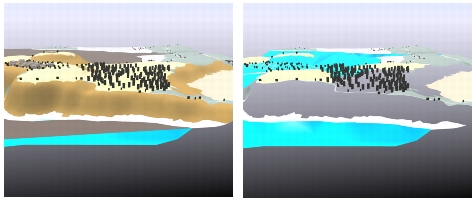
If a terrain patch was loaded from a GDB file, you can display or hide GDB soil types. Figure 78 shows the makland.gdb terrain file. The view on the left shows all soil types. The view on the right has Building, Grass, Ocean, and Rock surfaces hidden.
Figure 78: Visible surfaces toggled off
Procedure 52: Displaying or Hiding GDB Soil Types
-
Choose Settings > Terrain. The Terrain Settings dialog box opens.
-
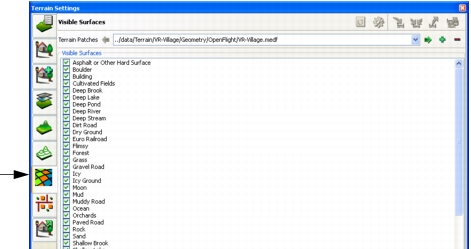
Select the Visible Surfaces page (Figure 79).
Figure 79: Visible Surfaces page
-
In the Terrain Patches list, select the terrain patch that you want to configure.
-
Select the checkbox for each soil type that you want to be visible.
-
Clear the checkbox for each soil type that you want to hide.
-
To change the state of multiple soil types at one time:
6.1 Select (highlight) the names of the soil types whose state you want to change.
6.2 Click Toggle Selected Surfaces.