Configuring File Caching
When file caching is enabled, 3D Network Visualizer stores information about the terrain and models in a format that enables it to be loaded quickly. This improves loading time the next time the cached objects are loaded. If caching is disabled, terrains and models must be loaded from their native formats, which may take longer.
Procedure 46: Enabling or Disabling File Caching
-
Choose Settings > Display. The Display Settings dialog box opens.
-
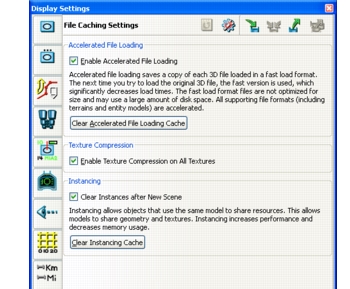
Select the File Caching Settings page (Figure 71).
Figure 71: File Caching Settings page
-
Select or clear the Enable Accelerated File Loading checkbox.
Enabling Texture Compression
When texture compression is enabled, textures are converted internally to a compressed format (DXT). Compressing textures decreases memory use and increases rendering performance.
Procedure 47: Enabling or Disabling Texture Compression
- Choose Settings > Display. The Display Settings dialog box opens.
- Select the File Cache Settings page (Figure 71).
- Select or clear the Enable Texture Compression on all Texture checkbox.
Clearing the File Cache
You can clear the file cache if you need to free disk space.
The cache is normally configured to be in ./appData/cache. You can delete files from this directory if you want to. The most likely reason to do this is if you load a terrain and realize that it should have had its DDS textures flipped, but has now been saved with them oriented the wrong way. You could delete the cache, then reload the terrain and toggle DDS Textures to the opposite setting.
Procedure 48: Clearing the File Cache
- Choose Settings > Display. The Display Settings dialog box opens.
- Select the File Caching Settings page (Figure 71).
- Click the Clear Accelerated File Loading Cache button.