Configuring Static LSPs
With static LSPs you can specify the exact route used by the LSP. Static LSPs allow more routing control but offer less resiliency to node and link failures. For this reason, you should always specify at least one backup route when configuring static LSPs in your network.
Procedure 80: Creating Static LSPs
-
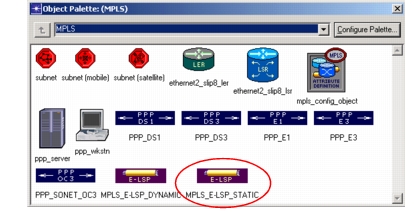
Click on the MPLS_E-LSP_STATIC object in the MPLS object palette.
Figure 386: Static LSP in the Object Palette
-
In the project workspace, click on the LSP’s ingress LER.
-
Click on the next link or router in the LSPs route.
Result: The tooltips indicate which links and routers can be added to the route. Hold the cursor over a link or router for details about adding it to the LSP.
-
Continue clicking on each link or router in the route until all have been added.
-
Right-click in the project workspace, and select Finish Path Definition to finish drawing the LSP.
-
If you are finished creating static LSPs, right-click in the project workspace, and select Abort Path Definition. Otherwise, draw the next static LSP.
-
From the Protocols > MPLS menu, choose Update LSP Details to configure label switching information on the LSP(s).
End of Procedure 80