Managing Filters
The Thread Filters in Server Characterization Editor enable you to find unallocated processes/threads with specific attributes and move those processes/threads into user-specified jobs. You can define one or more attributes in a filter. Server Characterization Editor searches the pool of unallocated data, then moves the data that qualifies from the Unallocated Processes/Threads pane into the Job Processes/Threads pane in one operation. You can also filter data through multiple filters into multiple jobs at the same time.
The filters you create within a Server Characterization model contain the name you specify when you define the filter attributes; when you save the filter, Riverbed Modeler adds a prefix that is the name of the Server Characterization model in which the filter was created.
Filters are stored in Filter Libraries that have the same name as the Server Characterization model in which they were created. However, the Filters dialog box gives you access to all the Filter Libraries; this enables you to use any filter with any model, regardless of the Server Characterization model within which it was created.
Figure 25: Filters Dialog Box
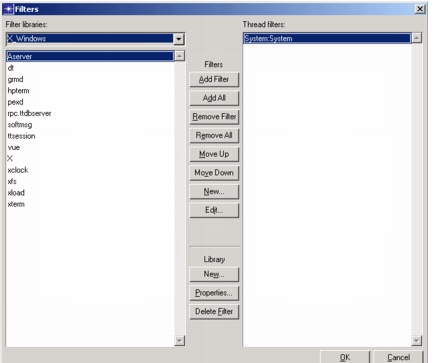
The filtering action in Server Characterization Editor works in one direction only—from the pool of Unallocated Processes/Threads into the target Job Processes/Threads to which they become allocated according to the filter criteria.
You can also move selected data or all data from one or all existing jobs into the ‘data pool’ of the Unallocated Processes/Threads pane; this enables you to reallocate data—manually or by filter action—to other jobs.
Table 7: Filter Buttons Summary
| Button | Description | Reference |
|---|---|---|
| Filters buttons | ||
| Add Filter | Adds the filter selected in the Filter Libraries list to the Thread Filters list; this activates the filter—along with the others in the Thread Filters list—for use when you run Apply Filters. | |
| Remove Filter | Removes the selected filter from the Thread Filters list; does not remove the filter from the Filter Libraries list. | |
| Move Up | Moves the selected filter up the Thread Filters list one position each time you click on the button | |
| Move Down | Moves the selected filter down the Thread Filters list one position each time you click on the button | |
| New… | Opens the Edit Filter dialog box | Creating a New Filter |
| Library buttons | ||
| New… | Opens the Create Filter Library dialog box, which enables you to create and name a new library | |
| Properties… | Opens the Edit Filter Library dialog box | |
| Delete Filter | Deletes a selected filter from the Filter Library; this action also deletes any instance of the filter in use in a Server Characterization model. |
For more information about editing processes/threads manually, see Removing or Adding Processes/Threads.