Editing a Line Graph
Several editors let you define a model (such as an antenna pattern or modulation curve) by entering or changing data points on a line graph. The techniques for editing line graphs are the same in each of these editors.
Line graphs are specified as a series of connected linear segments. You define each segment by clicking on its end points. When you draw a new line segment, any pre-existing line segments spanning the same range of x-coordinates are replaced.
Procedure 40: Drawing a Line Graph
-
Position the cursor so that the point of the arrow rests where the line graph should begin, then left-click.
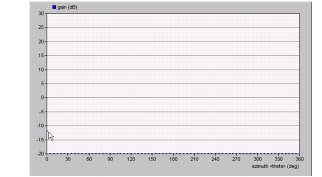
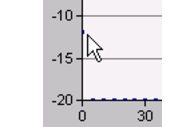
The editor places a single data point to define the first vertex:
-
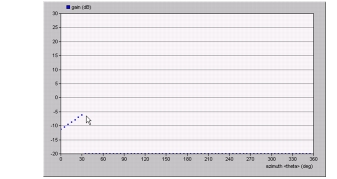
Move the cursor to the location of the next vertex, then left-click.
The editor draws a series of data points from the previous vertex, extending up to and including the current vertex.
-
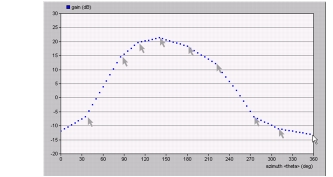
For each additional vertex, move the cursor to the appropriate location and left-click until the line graph is fully defined.
For each vertex, the editor draws a series of data points from the previous vertex, extending up to and including the current vertex.
Procedure 41: Modifying a Line Graph
-
In the appropriate editor, line display the graph you want to modify.
-
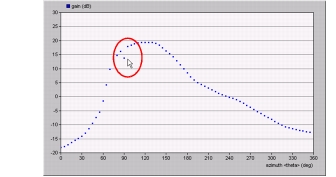
To establish the starting point of the new line segment, position the cursor where the line segment should begin and left-click.
The editor draws a single data point at this vertex. It also erases any other data point at the same abscissa (x-coordinate).
-
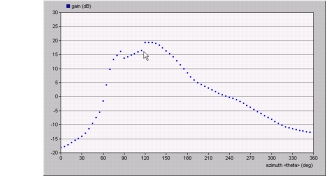
Move the cursor to the next desired vertex and left-click.
The editor draws a series of data points from the previous vertex, extending up to and including the current vertex. It also erases any other data points at the affected abscissas (x-coordinates).
-
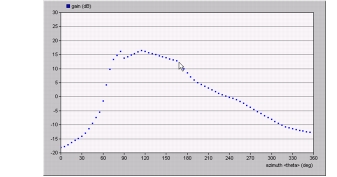
For each additional vertex you want to change, move the cursor to the appropriate location and left-click.
In each case, the editor draws the new line segment, and erases any other data points at the same abscissas (x-coordinates).
-
To modify a different portion of the graph, right-click in the graph and choose Unbind Last Click from the pop-up menu. You can now repeat step 2 to step 4 with a new starting point.