Enabling Terrain Effects in a Simulation
To model terrain effects in a simulation, you need a source of terrain data covering the geographic region of interest, a suitable propagation model, and propagation parameters appropriate to your scenario.
Note: If the scenario was created prior to release 17.5, the inherited settings might use “legacy” values. You can continue to use these settings or replace them with propagation and terrain specifications.
Procedure 1: Enabling Terrain Effects in a Simulation
-
If necessary, open the Configure/Run DES dialog box (DES > Configure/Run Discrete Event Simulation).
-
Expand the Inputs tree node, click on Terrain Modeling, and select the “Use Terrain Modeling Module” checkbox.
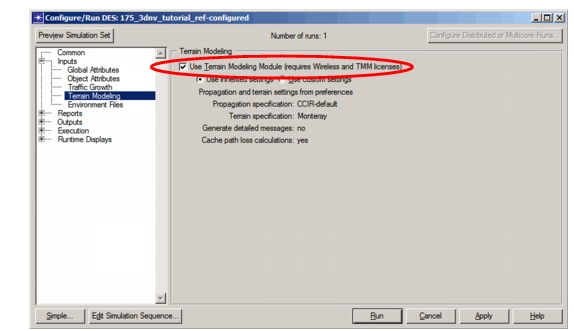
-
If the inherited settings shown are the ones you want to use in this simulation, click Apply.
-
If the inherited settings are not the ones you want to use, change them for this simulation as follows:
4.1 Select the “Use custom settings” radio button.
4.2 Choose a propagation specification and a terrain specification from the pull-down menus.
These menus list all specifications available on your computer. If the desired specification is not available, see [Creating a Terrain Specification](tmm-13-op-80-03.md) or [Creating a Propagation Specification](tmm-13-op-80-04.md).4.3 Select the “Generate detailed messages…” checkbox if you want additional information about the path loss calculations performed. (This sets the “Generate Detailed Status” preference.)
4.4 Select the “Cache path loss calculations” checkbox to allow reuse of calculated path loss values, as described in Reusing Path Loss Calculations. (This sets the “Enable Terrain Modeling Cache” preference.)
4.5 Click Apply.
-
Continue configuring other aspects of the simulation, click Cancel to continue later, or click Run to execute the simulation.