Saving and Recalling Views
At any given moment, the state of the observer is called its view. You can save views for later recall. If the observer is not attached to an entity, its view is its position and orientation in the simulated environment. If the observer is attached to an entity, a view saves the following information:
- Attach mode
- Positional offset
- Marking text
Saved views are managed in the Observer Views Panel (Figure 43).
Figure 43: Observer Views Panel
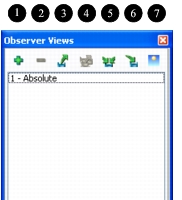
Its icons (as indicated by callouts) have the following meanings:
- Save the current view (1)
- Delete the selected view (2)
- Save all views to a file (3)
- Save the selected view to a file (4)
- Load a saved views file and append it to the list (5)
- Load a saved views file and replace the current list (6)
- Clear the list (7)
Note: Saved views are keyed to the marking text of the object to which the observer is attached.
Saving the Current View
Procedure 53: Saving the Current View
-
Choose View > Observer Views Panel.
The Observer Views Panel opens (Figure 43).
-
Click the Add icon (
 ).
The current view is added to the list.
Note: Views are remembered only while 3D Network Visualizer remains running. To save a view for future recall, you must save it to a file. Please see Saving Views to a File.
Recalling a View
To recall a view, select it in the Observer Views Panel. The view changes immediately.
Deleting Views
Procedure 54: Deleting a View
- In the Observer Views Panel, select the view you want to delete.
- Click the Delete icon(
 ).
Clearing the View List
To remove all views from the list, in the Observer Views Panel, click the Clear List icon ( ).
Saving Views to a File
You can save views to a file and load them at a later time. You can save an individual view or all of the views in the list.
Procedure 55: Saving the Selected View to a File
-
In the Observer Views Panel, click the Save Individual View icon (
 ).
The Save Selected Observer dialog box opens.
-
Select the file to which you want to save the view, or type the name of a new file. Include the extension
.osrx. -
Click OK.
Procedure 56: Saving All Views to a File
-
In the Observer Views Panel, click the Save All Views icon (
).The Save Observer Views dialog box opens.
-
Select the file to which you want to save the views, or type the name of a new file. Include the extension
.osrx. -
Click OK.
Loading Views
You can load saved views and append them to the list in the Observer Views Panel, or you can replace the list in the panel with the saved views.
Procedure 57: Loading Views (Append to the List of Views)
- In the Observer Views Panel (Figure 43), click the Load Views and Append icon (). The Open Observer Views dialog box opens.
- Select the saved views file that you want to load.
- Click OK.
Procedure 58: Loading Views (Replace the List of Views)
- In the Observer Views Panel, click the Load Views and Replace icon(). The Open Observer Views dialog box opens.
- Select the saved views file that you want to load.
- Click OK.