Configuring 802.11n High Throughput
This section describes how to configure 802.11n High-Throughput (HT).
Configuring the Physical Layer for 802.11n
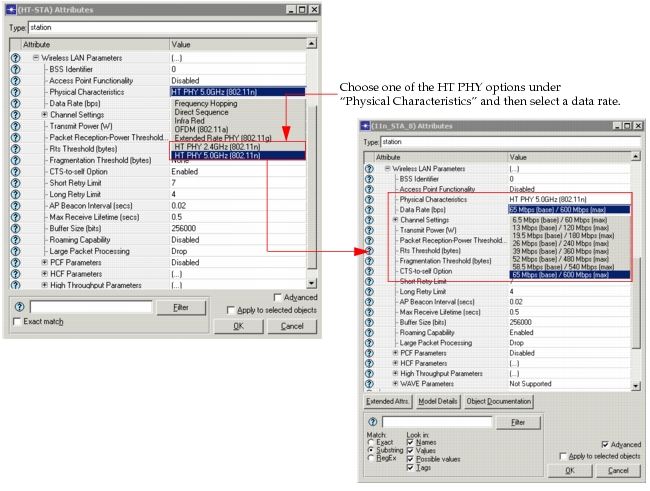
When 802.11n is configured, the STA (HT-STA) can realize very high physical layer data rates. To configure the physical layer for 802.11n, do the following:
- Set the physical layer to one of the two HT PHY types (described in "Physical Characteristics," below).
- Choose an appropriate HT data rate (see "Data Rate (bps)," below).
Figure 662: Minimum Configuration for High Throughput 802.11n
Note: Enabling 802.11n also enables the QoS capability (802.11e) of the STA.
HT PHY Layer Attributes
The following attributes apply to the HT PHY layer.
- Physical Characteristics. Specifies the frequency selection for HT PHY: HT PHY 2.4 GHz (802.11n) or HT PHY 5.0 GHz (802.11n).
- Data Rate (bps). Specifies the data rate. Available data rates are determined by the value of the "Physical Characteristics" setting. 802.11n STAs may use any data rate between the selected base data rate and its corresponding maximum data rate with matching modulation and coding schemes.
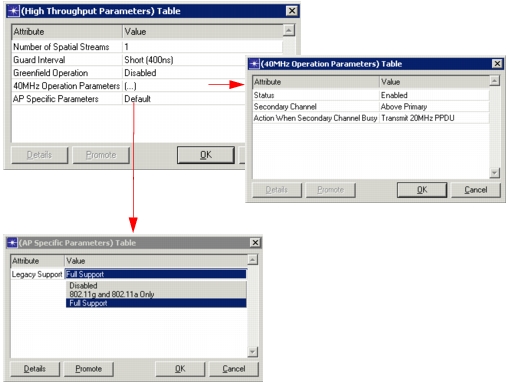
Figure 663: High Throughput Parameters
Configuring High Throughput Parameters
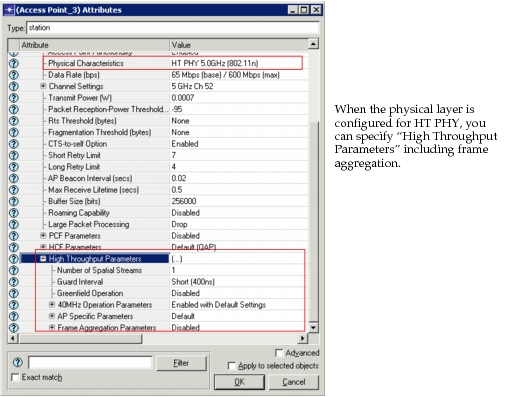
Configuring High Throughput Parameters is optional; however, when the "Physical Characteristics" are set for HT PHY, you can use the "High-Throughput Parameters" to specify settings for 802.11n nodes as follows:
- Number of spatial streams
- Guard Interval
- 40MHz Operation Parameters—This compound attribute lets you enhance the operational data rates. The "Status" attribute under is used to enable or disable 40 MHz operation support in an HT STA.
- Greenfield Operation—With Greenfield operation enabled, the HT-STA can use frames with HT Greenfield header format for HT transmissions.
- AP Specific Parameters—When enabled, this compound attribute lets an access point choose the type of legacy STAs to be allowed in the BSS.
- Frame Aggregation Parameters—This compound attribute lets you configure frame aggregation on an 802.11n STA. Both aggregated-MSDU (A-MSDU) and aggregated-MPDU (A-MPDU) are supported.
Figure 664: High Throughput Parameters
Configuring Aggregated-MSDU (A-MSDU)
Aggregated-MSDUs (A-MSDU) are configured per traffic category. Use the following procedure to configure A-MSDU. By default A-MSDU is enabled for all traffic categories.
Procedure 122: Configuring Aggregated-MSDU (A-MSDU)
-
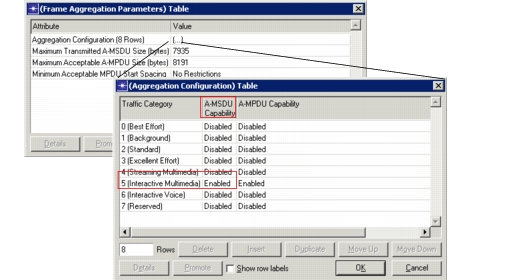
On an 802.11n STA, enable A-MSDU for a traffic category in the attribute WLAN Parameters > High Throughput Parameters > Frame Aggregation Parameters > Aggregation Configuration.
Click OK to save your settings. The following figure shows an example.
Figure 665: Enable A-MSDU for a Traffic Category
Note: When enabled, A-MSDU feature will be used only when the transmitting and the receiving STAs are 11n capable STAs.
-
Set the maximum size of the A-MSDU subframe in the attribute WLAN Parameters > High Throughput Parameters > Frame Aggregation Parameters > Maximum A-MSDU size (bytes).
This setting determines the maximum size of the A-MSDU subframe. The maximum A-MSDU size can be either 3839 bytes or 7935 bytes.
End of Procedure 122
Configuring Aggregated-MPDU (A-MPDU)
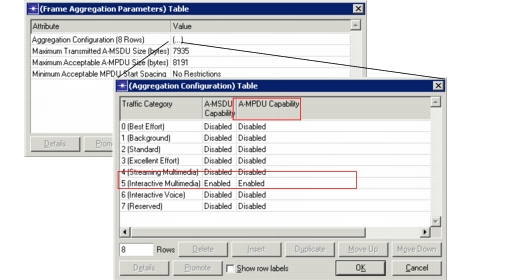
Aggregated-MPDUs (A-MPDU) are configured per traffic category. Use the following procedure to configure A-MPDU. By default A-MPDU is enabled for Background, Best Effort, Standard, and Excellent Effort traffic categories.
Procedure 123: Configuring Aggregated-MPDU (A-MPDU)
-
On an 802.11n STA, enable A-MPDU for a traffic category in the attribute WLAN Parameters > High Throughput Parameters > Frame Aggregation Parameters > Aggregation Configuration.
Click OK to save your settings. The following figure shows an example.
Figure 666: Enable A-MPDU for a Traffic Category
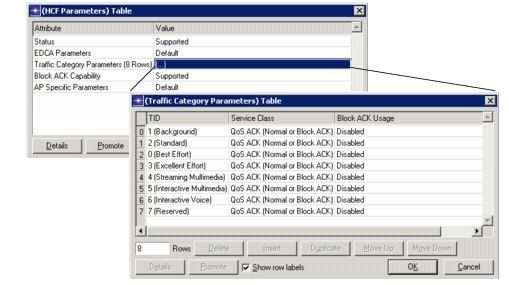
Note: If the "Service Class" attribute of the traffic category for which A-MPDU is enabled is set to "QoS ACK" in WLAN Parameters > HCF Parameters > Traffic Category Parameters (shown below), then the WLAN Parameters > HCF Parameters > Block ACK Usage > Block-ACK Initiation attribute is ignored and is always considered enabled.
Figure 667: Service Class Attribute Setting
Note: When enabled, the A-MPDU feature will be used only when the transmitting and the receiving STAs are 802.11n capable STAs.
-
Set the maximum size A-MPDU in the attribute WLAN Parameters > High Throughput Parameters > Frame Aggregation Parameters > Maximum Acceptable A-MPDU Size. Allowable values are 8191, 16383, 32767, or 65535.
While preparing an A-MPDU for transmission to another HT-STA, the transmitting WLAN STA will ensure that the size of A-MPDU does not exceed the value set in this attribute of the receiving HT-STA.
-
Set the minimum time gap required between the start of one MPDU and the next MPDU in an A-MPDU frame received by a WLAN STA in the attribute WLAN Parameters > High Throughput Parameters > Frame Aggregation Parameters > Minimum Acceptable MPDU Start Spacing.
While preparing an A-MPDU frame for transmission to another HT-STA, the transmitting HT STA will ensure that a minimum gap of the value set in this attribute of the receiving HT STA is maintained between two MPDUs in an A-MPDU. If necessary, in order to satisfy this requirement, a STA will add padding between MPDUs in an A-MPDU. Any such padding is in the form of one or more MPDU delimiters with the MPDU Length field set to 0.
End of Procedure 123
Note: See the “Frame_Aggregation_Study” scenario in the WLAN example project for a demonstration and comparison of a variety of frame aggregation configurations.