Playing Logger Files
The Status Bar in the Logger window displays the starting time for playback, the current time in the file, and the ending time for playback.
Note: Playback options are restricted in time-managed mode. See "Some Logger Features are Restricted When You Use Time Management“ on page 362.)
For information about how to configure the Logger for faster playback, please see "Configuring Faster Playback“ on page 388.
Playing a Logger File
By default, the Logger enters a stopped state when a file is opened.
Procedure 154: Playing a Logger File
- Open the file.
- Choose Play > Play/Pause, or click the Play button (
 ).
Enabling Immediate Playback
When Play On Load is enabled, the Logger starts playing as soon as you open a file. If the file has an annotation file, it is loaded automatically. When Play On Load is disabled, you must click the Play button to start playing.
To enable or disable immediate playback, choose Options > Play On Load.
Pausing Playback of a Logger File
To pause playback of a Logger file, choose Play > Play/Pause, or click the Pause button ( ).
Playing a Segment of a File
You can configure the Logger to play any arbitrary segment of a file. If you have the Logger configured to loop, it loops within the segment you have specified. You can specify exact start and stop times in a dialog box or you can specify the start and end times with the time sliders.
Specifying a Playback Segment Using the Time Sliders
Procedure 155: Playing a Segment of a File
-
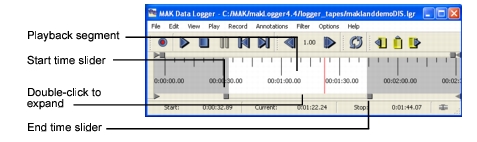
On the Logger timeline, drag the start time slider (Figure 135) to the time at which you want to start playback. The Start time display in the Status Bar shows the exact time that you select.
Figure 135: Timeline sliders
-
Drag the end time slider to the point on the timeline at which you want to end playback. The Stop time display in the Status Bar shows the exact time that you select.
-
Play the file.
Specifying a Playback Segment in a Dialog Box
Procedure 156: Specifying a Playback Segment using a Dialog Box
-
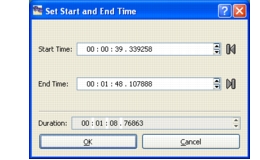
Choose Play > Set Start and End Time. The Set Start and End Time dialog box opens (Figure 136).
Figure 136: Set Start and End Time dialog box
-
Type start and end times or use the spinner control to select them. The duration of the segment is displayed in the Duration box.
-
To reset the start time to 0 or the end time to the end of the file, click the reset buttons to the right of the time value.
-
Click OK.
Expanding the Playback Segment to Full Length
To expand the playback segment to the full length of the file, drag the sliders back to the edge of the window or double-click the timeline between the start and end time sliders (Figure 135).
Looping Playback
When the Logger plays a file to the end or the end of a playback range, it can stop or it can loop back to the beginning of the file or range and start playing it again.
To set the looping behavior, choose Play > Toggle Loop at End, or click the Toggle Loop At End icon ( ) in the Logger window (Figure 131).
Stopping Playback of a Logger File
To stop playback of a Logger file, choose Play > Stop, or click the Stop button ( ).
Setting the Playback Speed
You can vary the playback speed. The icon bar lets you increase speed by a factor of 2 and decrease by 0.5. The Set Playback Speed dialog box lets you increase and decrease the speed by any value. If you set the speed using the Set Playback Speed dialog box, the icon bar displays the new speed and increases or decreases the speed relative to the new value, not the default set of values. The actual speed of the action in the file depends on the speed at which you recorded it.
Procedure 157: Setting the Playback Speed
-
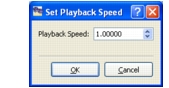
Choose Play > Playback Speed > Set Playback Speed, or click the current speed setting on the Logger toolbar. The Set Playback Speed dialog box opens.
Figure 137: Set Playback Speed dialog box
-
Type a speed or set it using the controls.
-
Click OK.
You can quickly increase or decrease the playback speed by a factor of two.
To quickly increase or decrease playback speed:
- Choose Play > Playback Speed > Increase Playback Speed 2x (or Decrease Playback Speed 1/2x), or
- Click the Increase Speed button (
 )or Decrease Speed button (
 ) on the icon bar (Figure 131).