Zooming the Timeline
You can zoom in and out on the timeline (adjust the granularity) and change the time displayed at either end of it. You can zoom manually, using the zoom sliders, or you can specify zoom boundaries, center point, and duration in the Set Zoom dialog box.
Using the Zoom Sliders
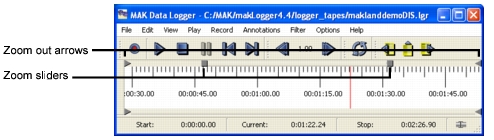
To zoom the timeline in or out using a zoom slider, drag a zoom slider (Figure 138) to the left or right.
To return a zoom slider to its default location, click the appropriate zoom out arrow.
Figure 138: Zoom sliders
Dragging a zoom slider affects the timeline as follows:
- Dragging a zoom slider toward the middle of the Logger window zooms in.
- Dragging a zoom slider toward the edge of the window zooms out.
- Dragging the left zoom slider changes the leftmost time visible in the timeline.
- Dragging the right zoom slider changes the rightmost time visible in the timeline.
Note: Adjusting the timeline zoom and the visible time segment does not affect the start and end times for playback. These are determined by the timeline controls. Please see Playing a Segment of a File for details about the playback time.
Setting the Zoom from the Set Zoom Dialog Box
The Set Zoom dialog box allows you to precisely specify the start and end point of the zoomed view.
Procedure 160: Zooming the Timeline using the Set Zoom Dialog Box
-
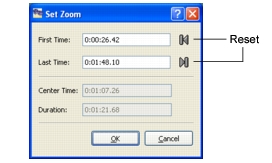
Choose View > Set Zoom. The Set Zoom dialog box opens (Figure 139).
Figure 139: Set Zoom dialog box
-
Enter the beginning time in the First Time box.
-
Enter the end time in the Last Time box.
-
If you want to reset the start time value to 0:00:00.0 or the end time to the end of the file, click the appropriate Reset button.
-
Click OK.
Resetting the Zoom Level
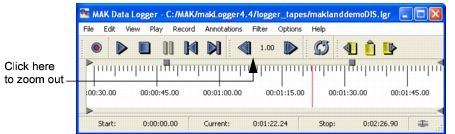
To quickly zoom the timeline to its full length, double-click on the zoom bar between the zoom sliders (Figure 140).
Figure 140: Zooming out