The Logger Window
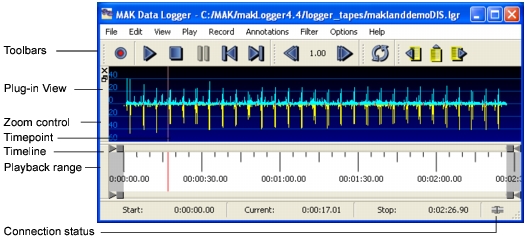
The Logger window has a set of control buttons, a timeline, and a status bar (Figure 130). Data supplied by plug-ins, such as the data view and annotations, is displayed between the toolbar controls and the timeline. You can enable and disable the display of plug-in data.
Figure 130: Logger window with a Logger file loaded
The Logger window controls, as identified in Figure 131, are as follows:
- Record (1)
- Play (2)
- Stop (3)
- Pause (4)
- Move the timepoint (playback cursor) to the start of the playback range (5)
- Move the timepoint to the end of the playback range (6)
- Decrease the playback speed (by 50%) (7)
- Displays current speed; open Set Playback Speed dialog box (8)
- Increase the playback speed (double the speed) (9)
- Set the end of playback action (stop or wrap) (10)
- Jump to the previous annotation (11)
- Insert a point annotation (12)
- Jump to the next annotation (13)
Figure 131: Logger controls

Hiding and Displaying Plug-in Views
Plug-ins can display data in the area above the zoom control. Multiple plug-in views can be displayed at one time.
To display plug-in data, select the appropriate option on the View menu (the menu options toggle the display on and off.)
To hide a plug-in view, use one of the following methods:
- Select the appropriate option on the View menu.
- Click the hide button for the plug-in view that you want to hide (Figure 130).
Docking and Undocking GUI Plug-in Views and Toolbars
You can undock and dock plug-in views and toolbars from the Logger window and place them anyplace on the desktop. You can dock the toolbars to the window at the top and sides and can reorganize the order in which they are placed.
Note: Floating windows are supported only in the Windows version of the Logger.
Figure 132: Undocked GUI components
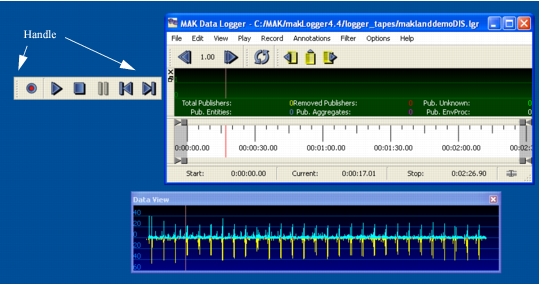
To undock a plug-in view or toolbar, click and hold its handle and drag it off the window.
To dock a toolbar, drag it to the Logger window where you want to dock it. You can dock toolbars to the top and sides of the window.
To dock a plug-in view, drag it to the window or double-click its title bar. You can dock plug-in views in the space above the timeline.
Note: If the Logger window is resized such that there is not enough room above the timeline for a plug-in view, you might not be able to dock a previously undocked view. If this happens, double-click the title bar of the undocked view.