Recording Exercises
When you record an exercise, you can specify a name for the new recording and then start the recording process, or you can start recording immediately and save the recording to a file when you are done (the default behavior.)
The Status Bar displays the starting time, the current time, and the total time of the recording.
As recording progresses, the Time field is updated to display elapsed time. In record mode, the timescale is fixed at 1.0 (normal speed).
Note: If you are recording an exercise that is running faster than real-time, the Logger records the simulation at that rate and will play it back faster than real-time when the playback timescale is set to 1.0.
Note: You cannot record while you are playing a file.
Recording Immediately (to a Temporary File)
To begin recording, choose Record > Record, or click the Record button ( ).
Recording to a Specified File
Unless you enable Pause on Record As, the Logger starts recording as soon as you specify a filename.
Procedure 150: Recording an Exercise to a Named File
-
Choose Record > Record As. The New Logger File dialog box opens.
-
Type a new filename or select an existing file.
Note: If you select an existing file, its contents will be overwritten by the new file.
-
Click Save. If Pause on Record As is disabled (the default), the Logger starts recording immediately. If Pause on Record As is enabled, to begin recording, choose Record > Record, or click the Record button (
).
Enabling Pause on Record As
By default, when you choose Record As, the Logger starts recording as soon as you close the New Logger File dialog box. If you do not want to start recording immediately, you must enable Pause on Record As. When Pause on Record As is enabled, the Logger does not start recording until you click the Record button.
To enable or disable immediate recording for the Record As command, choose Options > Pause on Record As.
Recording to Multiple Files
The Logger can record an exercise to multiple files as it is recording the primary Logger file. When you record to multiple files, the Logger saves data to file at specified time intervals. You can play or otherwise process these files in a second Logger while the first Logger continues to record the exercise. This option also ensures that if logging of the exercise is interrupted due to system or application instability, you will not lose the data saved prior to the application problems.
Procedure 151: Recording to Multiple Files
-
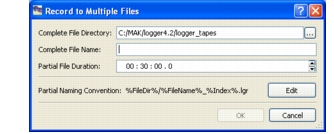
Choose Record > Record to Multiple Files. The Record to Multiple Files dialog box opens.
-
Optionally, change the location to which the complete file will be saved in the Complete File Directory text box.
-
In the Complete File Name box, specify the name of the complete file.
Figure 133: Record to Multiple Files dialog box
-
Specify the length of each partial file in the Partial File Duration box.
-
Optionally, change the convention used to name the new files. For details about changing the partial file naming convention, please see Specifying the Partial File Naming Convention.
-
Click OK.
Specifying the Partial File Naming Convention
The default convention for naming partial files is complete_filename_n.lgr. Files are written to the complete file directory. However, you can change the naming convention using a set of macros provided with the Logger.
Procedure 152: Changing the Partial File Naming Convention
-
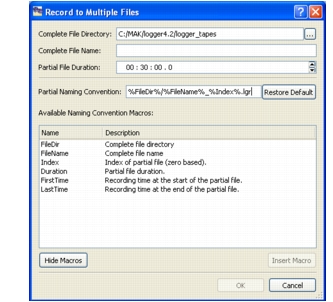
In the Record to Multiple Files dialog box, click Edit. The dialog box expands to display a list of macros.
Figure 134: Record to Multiple Files dialog box in Edit mode
-
Edit the text in the Partial Naming Convention box manually as desired or add macros, or both.
-
To add a macro to the naming convention, select it in the list and click Insert Macro (or double-click the list entry.) It gets added at the location of the insertion point in the Partial Naming Convention box. To ensure that each partial file has a unique name, the naming convention must include at least one of Index, FirstTime, or LastTime. For explanations of the macros, please see Table 42.
-
Click Hide Macros to close the macro list.
-
Click Restore Default to revert to the default naming convention.
Table 42: Partial file naming convention macros
| Macro | Definition |
|---|---|
| FileDir | The path of the directory in which the complete file will be saved. The macro does not include the final path separator. |
| FileName | The name of the complete file, without the file extension. |
| Index | An integer index, starting at 0 and increasing by one for each partial file created. |
| Duration | The duration of the file in seconds. Each partial file, except the final file will be this long. |
| FirstTime | The time in the complete file that maps to the beginning of the new file, in seconds. |
| LastTIme | The time in the complete file that maps to the end of the new file, in seconds. |
Pausing the Recording Process
You can pause the recording process and then resume recording to the same file.
Note: When you pause during the recording process, the file is not saved. You cannot play back the file from the paused recording state. If for some reason you exit the Logger while in the paused state, the file will not be saved.
To pause the recording process, click the Pause button ( ).
To resume a paused recording, choose Record > Record, or click the Record button ().
Stopping the Recording Process
When you stop recording, the Logger enters playback state and you cannot resume recording. If you want to resume a recording, pause it.
Note: If the Logger has not recorded any data, it cannot create a file.
To stop recording, choose Record > Stop, or click the Stop button ( ).