Adding New Cockpit Display Models
3D Network Visualizer supports Cockpit displays created with GL Studio. A cockpit is implemented through a Reusable Software Object (RSO) DLL. A cockpit’s values are changed through updaters. An updater is associated with a cockpit attribute through the cockpit model definition. Figure 116 shows the model definition for a cockpit.
Cockpit updaters are associated with an attribute name that is known to the RSO. The value you provide for a cockpit-specific attribute is the name of an updater for dynamically changing values or a constant value. Constant values are commonly used to configure a cockpit when it is loaded. 3D Network Visualizer provides a set of commonly used updaters. You can add additional updaters or override existing updaters through a plug-in.
Note: The GL Studio license included with 3D Network Visualizer only covers the cockpits delivered with the product. If you add your own cockpits, you will need GL Studio run-time licenses.
Figure 116: Cockpit model definition
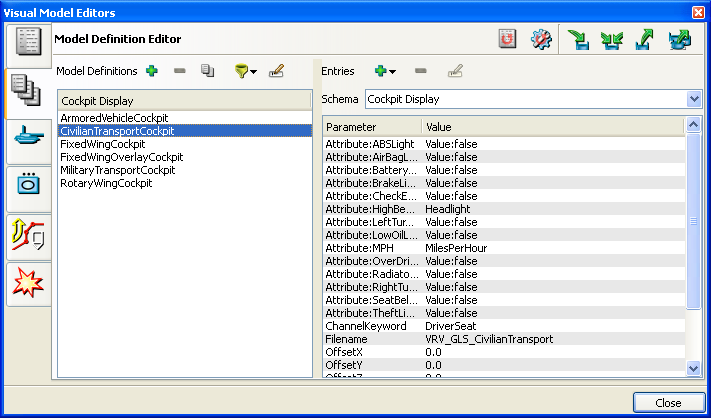
The general procedure for adding a new cockpit model is:
- Install the cockpit’s DLL.
- Create a model definition for the cockpit.
- Map entity types to the model definition, as described in “Adding a Model Mapping“ on page 316.
Installing a Cockpit DLL
If you create your own cockpit, it is implemented as an RSO DLL that you must add to the 3D Network Visualizer file structure.
To install a new cockpit, place the DLL for the cockpit in ./data/huds and create a model definition for it.
Creating a Model Definition for a Cockpit
Cockpit models are configured using schemas and model definitions, just like any other model in 3D Network Visualizer. This section provides additional details specific to cockpits.
Procedure 135: Creating a Model Definition for a Cockpit
-
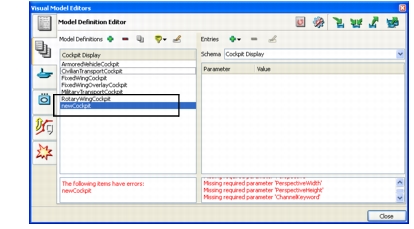
Add a new model definition, as described in Creating a Model Definition. Be sure to select Cockpit Display as the schema. A new model definition is added to the display (Figure 117). The message window lists the parameters that you must add. These are the parameters defined by the schema.
Figure 117: New cockpit model definition
-
Add the required parameters, as described in Adding Parameters to a Model Definition. Table 7 describes the required parameters.
Table 7: Required parameters for cockpit models
Parameter Description Filename The name of the DLL without the file extension. RSOName The name of the class to be loaded from the DLL.
Default: filenameClassPerspective 2D or 3D. This parameter refers to the perspective of the cockpit display, not the terrain. Currently, only 2D cockpit displays are provided with 3D Network Visualizer. PerspectiveWidth
PerspectiveHeightAdjusts the orthogonal projection for a 2D cockpit. Adjusts the perspective projection for a true 3D cockpit. ChannelKeyword A keyword that tells a channel to display any object that has the keyword in its definition. Default: showCockpits. (This keyword means that any channel that has the showCockpits keyword will show cockpits.) Offset X
Offset Y
Offset ZMoves the cockpit offset around the screen. The OffsetX value shifts the cockpit left or right. The OffsetY value shifts it up or down. OffsetZ shifts a 3D cockpit forward and back. It has no effect on 2D cockpits. -
Add the parameters required by the cockpit RSO. To do this, add an Attribute parameter, as follows:
3.1 Add an Attribute parameter, as described in Adding Parameters to a Model Definition.
3.2 Double-click the parameter to make its name editable.
3.3 Add a colon and the name of an RSO attribute that you need to map. For example, Attribute:Heading.
3.4 In the Value column, click the value to make it editable. Type the name of an updater or specify a constant value in the format Value:value. You can specify an updater that you have added through a plug-in or one of the updaters provided with 3D Network Visualizer, as described in Table 8.
-
Map an entity type to your definition, as described in “Adding a Model Mapping“ on page 316.
Table 8: Updaters provided
Updater Description AOA Angle of Attack. Returns the pitch of the entity clamped (5 to 30 degrees). FeetAGL Feet Above Ground Level. Returns the feet above the terrain (or buildings below). FeetMSL Feet Above Mean Sea Level. Returns the altitude above the sea level. FeetPerMinute Feet Per Minute. Returns the climb rate. KilometersPerHour Speed of the entity in kilometers per hour. MilesPerHour Speed of the entity in miles per hour. KnotsPerHour Speed of the entity in nautical miles per hour. Pitch Returns the pitch of the entity clamped (-180 to 180 degrees). Roll Returns the roll of the entity clamped (-180 to 180 degrees). Yaw Returns the yaw of the entity clamped (0 to 360 degrees). Headlight Returns the headlight state of the entity as true or false. Value This updater sends any value to the cockpit once and then never again. It is used to configure initial setup and to turn display components on or off.