Creating and Editing Element Definitions
Element definitions let you assign visualizers to scene elements (entities, tactical graphics, interactions, and aggregates). Element definitions use a tree-style hierarchy to assign visualizers. At any level of the hierarchy an element definition inherits the visualizers of its parents. This makes it possible to assign a visualizer to many elements at one time. You can change the inherited parameter values for a specific element at any level of the hierarchy. However, in most cases, you cannot delete an inherited visualizer.
You can create and edit element definitions for entities, tactical graphics, and interactions. The procedures are the same for each element type.
Creating an Element Definition
Procedure 130: Creating an Element Definition
-
Choose Settings > Visual Model Editors. The Visual Model Editors dialog box opens.
-
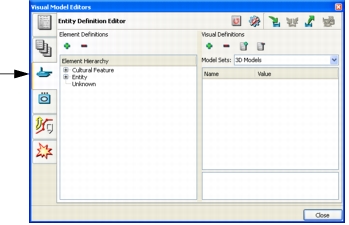
Select the page for the type of element definition that you want to create (Figure 113).
Figure 113: Entity Definition Editor page
-
Expand the element definition hierarchy to the level at which you want to add an element definition and select the parent element.
-
Click the Add icon (
 ). The Create Element Definition dialog box opens.
-
Type a name for the element definition. (You cannot edit the name after you create it, so try to avoid typing errors.)
-
Click OK. The new element is added to the list.
-
Optionally, edit the visualizers assigned to the element. For details, please see Editing a Visualizer.
-
Optionally, add a visualizer to the element. For details, please see Adding a Visualizer.
-
Optionally, save the element. For details, please see Saving Element Definitions.
Editing an Element Definition
An element definition consists of a list of visualizers for that element. You can add visualizers and you can edit a visualizer’s parameters. In most cases, you cannot delete an inherited visualizer.
Adding a Visualizer
Procedure 131: Adding a Visualizer to an Element Definition
- Choose Settings > Visual Model Editors. The Visual Model Editors dialog box opens.
- Select the page for the type of element definition that you want to edit (Figure 113).
- Select the element definition that you want to edit.
- Optionally, on the Model Sets drop-down list, select the model set you want to use. (3D Network Visualizer XR only)
- Click the Add icon () next to the Visual Definitions label. The Create Visualizer Definition dialog box displays a list of available visualizers.
- Select the visualizer that you want to add.
- Click OK. The visualizer is added to the element.
- Optionally, edit the parameters for the visualizer. For details, please see Editing a Visualizer.
Editing a Visualizer
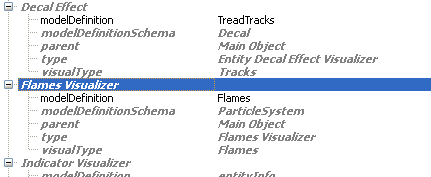
Visualizers and their parameters are displayed either as grey, italicized text or as black text. Italicized text indicates that the visualizer or parameter is inherited from a parent element. Visualizers and parameters that are not italicized are particular to that element. (These entries could be inherited by child elements.)
Figure 114: Visualizer entry
Procedure 132: Editing a Visualizer Parameter
-
Choose Settings > Visual Model Editors. The Visual Model Editors dialog box opens.
-
Select the page for the type of element definition that you want to edit (Figure 113).
-
Select the element definition that you want to edit.
-
In the visualizer pane, click the value of the parameter that you want to edit. Depending on the parameter, a drop-down list of available values is displayed, a dialog box is displayed, or the field becomes editable.
-
For a drop-down list, select the new value. For an editable field, type a new value. For a dialog box:
5.1 If the dialog box window does not have a drop-down list, click the Add icon (
). A drop-down list of values is added to the dialog box window.5.2 Select the value that you want.
5.3 Click OK.
Mapping to Multiple Model Definitions or Schema
There may be cases where you want to map a visualizer to multiple model definitions or multiple schema. If you do this, 3D Network Visualizer randomly assigns the model definition or schema to instances of the object.
Procedure 133: Mapping a Visualizer Attribute to Multiple Values
-
Choose Settings > Visual Model Editors. The Visual Model Editors dialog box opens.
-
Select the page for the type of element definition that you want to edit (Figure 113).
-
Select the element definition that you want to edit.
-
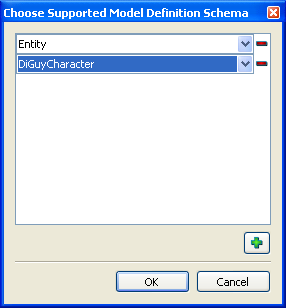
In the visualizer pane, click the value of the modeldefinition or modeldefinitionschema parameter that you want to edit. A dialog box opens. If the attribute already has values, they are listed in the dialog box window as a series of drop-down lists (Figure 115).
Figure 115: Parameter with multiple values
-
To add a value, click the Add icon (
). A new list is added to the window. -
Select a value from the new list.
-
To remove a value, click the Delete icon (
 ) next to the list for that value.
-
Click OK, The visualizer list does not show all of the values, but clicking it will open the dialog box again and show the selected values.
Deleting an Element Definition
Note: You cannot delete an element definition if it is being used.
Procedure 134: Deleting an Element Definition
- Choose Settings > Visual Model Editors. The Visual Model Editors dialog box opens.
- Select the page for the type of element definition that you want to delete (Figure 113).
- Select the element definition that you want to delete.
- Click the Delete icon ().
Saving Element Definitions
Changes to element definitions get saved automatically. You can also save element definitions using the standard 3D Network Visualizer options for saving settings. For details, please see “Managing 3D Network Visualizer Settings“ on page 126.