Configuring SpeedTree Trees
SpeedTree trees are high resolution models of trees. To improve performance, you can set clipping plane and level-of-detail (LOD) values to vary the resolution of the trees placed in the scene based on their distance from the observer. For details about clipping planes, please see “Setting the Clipping Planes“ on page 189.
Procedure 137: Configure SpeedTree trees
-
Choose Settings > Display. The Display Settings dialog box opens.
-
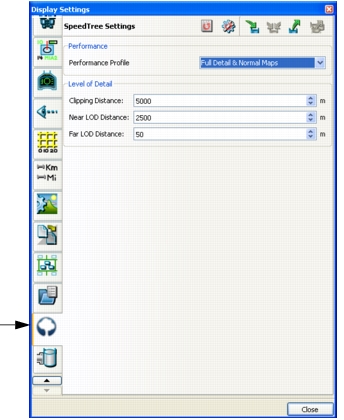
Select the SpeedTree Settings page (Figure 118).
Figure 118: SpeedTree Settings page
-
In the Performance group box, select a performance profile. (For details, please see Specifying the SpeedTree Performance Profile.)
-
In the Level of Detail group box, specify the clipping distance and the near and far LOD distance.
-
Click Close.
Specifying the SpeedTree Performance Profile
The number of SpeedTree objects in a scene can affect performance. Therefore, 3D Network Visualizer provides several profiles for display of SpeedTrees so that you can balance performance against visual quality. You specify the performance profile on the SpeedTree Settings page of the Display Settings dialog box. Table 9 describes the profiles.
Table 9: SpeedTree Performance Profiles
| Profile | Branch Texture | Frond Texture | Vertical Billboards | Horizontal Billboards |
|---|---|---|---|---|
| Disabled | ||||
| Single Color Map | Color | Color | Low LOD | |
| Partial Detail & Normal Maps | Color Detail Normal map |
Color | Low LOD | |
| Full Detail & Normal Maps | Color Detail Normal map |
Color Normal map |
Low LOD | |
| Full Detail & Normal & Shadow Maps | Color Detail Normal map Shadow |
Color Detail Normal map |
Low LOD | Low LOD |