Managing 3D Network Visualizer Settings
3D Network Visualizer has the following types of settings:
-
Independent, or display, settings are the individual settings managed on the Settings menu and the pages of the Display Settings dialog box. Changing an independent setting, such as enabling track histories or wireframe mode, does not affect other settings.
Independent settings are categorized as being global settings or observer-specific settings. Global settings apply regardless of the observer mode. Observer-specific settings can be different for each observer mode. For more information, please see Global Settings and Observer-Specific Settings.
-
Dependent settings are the schemas, model definitions, element definitions, and entity type mappings that collectively determine how entities and objects are modeled in the scene. Changing a dependent setting, such as a model definition may affect settings that depend on it, such as an entity definition.
3D Network Visualizer manages settings as follows:
- As you make changes to settings during a session, it saves the changes.
- It remembers the settings in effect when you exit and uses them as the default settings in your next session.
- During any particular session, you can revert to the default settings.
- You can save the current settings to a file.
- You can import saved settings.
- You can restore settings to those that were in effect when 3D Network Visualizer was first installed (factory settings).
Dependent settings have two additional options that independent settings do not have:
- You can save or restore a specific setting
- You can merge settings from a file into the current settings.
The procedures for saving and restoring settings are the same regardless of the types of settings. You start them by clicking an icon on a settings dialog box page. However, the way that 3D Network Visualizer saves or restores settings depends on the type of setting, as follows:
- When you initiate a save or restore operation on independent settings it only affects the settings on the dialog box page from which you started the save or restore. If you have changed a setting on another page, it is not affected.
- When you initiate a save or restore operation on dependent settings, all of the changes to all of the related settings get saved or restored. This ensures that the relationships do not get broken.
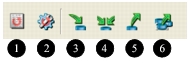
Figure 49 illustrates the settings management icons. They are described in the list.
Figure 49: Settings icons
-
Revert to the default settings (1). Override any changes made to settings during this session.
-
Restore the factory settings (2). Change settings to the settings used when 3D Network Visualizer was installed. (The factory settings and default settings may be different.)
-
Import settings from a file (3). Replace the current settings with those stored in the selected file.
-
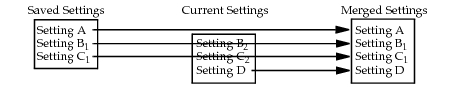
Merge in settings from a file (4). (Only supported for dependent settings.) Merging works as follows:
- Saved settings that do not have a match in the current settings are added.
- Saved settings replace matching settings.
- Current settings that are not replaced (that is, for which there is no match in the saved settings) remain valid.
Figure 50 illustrates how merged settings works. Setting A in the saved settings has no match in current settings, so it is added to the merged settings. Current settings B₂ and C₂ are replaced with saved settings B₁ and C₁. Current setting D has no match in saved settings, so it is retained in the merged settings.
Figure 50: Merged Settings
-
Export settings to a file (5). Save the current settings to the selected file.
-
Save the selected settings to a file (6). (Only supported for dependent settings.)
Note: The icons described in this section are disabled on dialog box pages on which their function is not supported. This includes most of the pages on the Terrain Settings dialog box.
Note: Each 3D Network Visualizer application saves settings to its own directory (
./appData/settings/stealth).
Note: If you load an alternative settings file at startup, it is treated like an imported settings file. If you save current settings as default, they get saved to the default files in
./appData/settings/. They do not get saved back to the alternative file unless you explicitly export them to that file.
Synchronizing Settings Among 3D Network Visualizer Installations
If your simulation is using several 3D Network Visualizer applications or display engines, you may want to use the same settings across all of them, particularly if you have added model definitions and mappings to the factory settings. To synchronize settings, copy the data directories (./appData, ./data, and ./userData) from the computer on which you have updated them to the computers on which the other 3D Network Visualizer applications and display engines are installed. Then import the settings into any Settings page that you customized on the source 3D Network Visualizer machine.
Global Settings and Observer-Specific Settings
3D Network Visualizer has two types of independent settings – global settings and observer-specific settings.
Global settings affect the display regardless of which observer mode you are using. Global settings include entity labels, tactical graphics, and cockpit displays. The settings on the Settings menu are all global settings.
Observer-specific settings can be different for each observer mode. In fact, it is the different settings that distinguish one observer mode from another. For example, one difference between Stealth observer mode and Out-the-Window observer mode is that Stealth mode has view controls enabled and Out-the-Window mode has them disabled.