Configuring Multichannel Displays
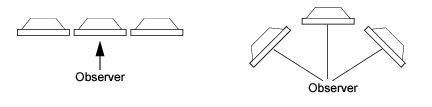
People running simulations often want to set up a multichannel configuration using multiple monitors (on one or more computers) to display exercises. Typical configurations are a horizontal alignment, which widens the view, and the angled alignment, which surrounds the observer to simulate an out-the-window view (Figure 20). Since 3D Network Visualizer just sends out its view, if you do not configure the displays for multichannel, the subordinate monitors display the exact same view as the master (Figure 22, default window views). Therefore, for multiple views, you must configure the channels to calculate an offset from the master view.
Figure 20: Multi-channel displays (top-down view)
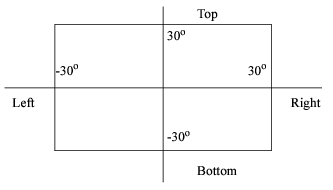
The distribution of the view across multiple channels is controlled by the frustum. Figure 21 illustrates the default frustum for Channel 1. It has a 60° field of view, from -30° to +30°.
Figure 21: Default frustum for Channel 1
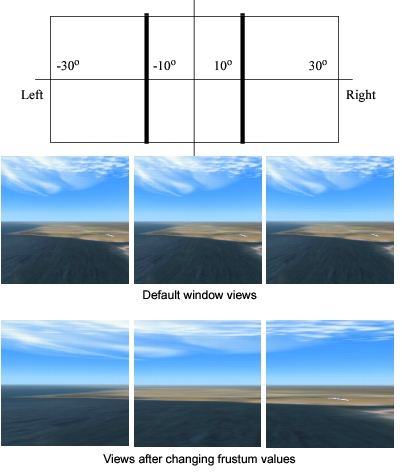
If you wanted to split the view in Figure 21 into, for example, three horizontal channels, you would edit the left and right frustum values for each channel, as shown in Figure 22. The field of view is the same: -30° to +30°. However, now each channel shows a 20° segment of the total field of view.
Figure 22: Frustum values for three channels
Changing the Camera’s Position and Orientation Offset
Changing the frustum affects how much of the database is in the view. Changing the camera’s position and orientation affects the point from which you look at the view. For example, imagine you are simulating the view from a vehicle, as in vehicle 1 in Figure 23. (The camera location is represented by the binoculars.) If you wanted to show the view as experienced by a gunner riding in the back of the vehicle, or in a turret, you would change the X, Y, and Z camera position offsets in the channel’s attribute list (vehicle 2).
Figure 23: Position and orientation offsets
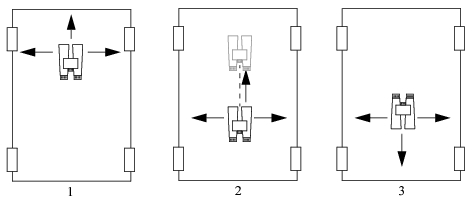
If you wanted the gunner to look out the rear of the vehicle, you would change its orientation, with the Psi (heading), Theta (pitch), and Phi (roll) Camera Orientation Offsets (vehicle 3).
Creating a Multichannel Configuration
A multichannel configuration is just a set of display engine configurations. You must save each configuration individually. Appendix C “Display Engine Tutorials“ on page 525 shows how to create, save, and load a multichannel display engine configuration.
Procedure 22: Saving a Multichannel Configuration
-
Start 3D Network Visualizer and one or more 3DNV Display Engines.
-
In the Display Engine Configuration Editor Panel, connect the display engines.
-
Configure the display engines with the windows and channels that you want them to have.
-
For each display engine in the Display Engine Configuration Editor:
4.1 Select the display engine.
4.2 Click the Save Display Engine Configuration icon (
 ).
4.3 Type a name for the configuration.
4.4 Click Save.
Loading a Multichannel Configuration
You can load a multichannel configuration in the Display Engine Configuration Editor or from the command line. If you load it in the editor, you must load each configuration individually. For details about loading multiple configurations from the command line, please see Loading Multiple Display Engine Configurations from the Command Line.
Procedure 23: Loading a Multichannel Configuration
-
Start 3D Network Visualizer and one or more 3DNV Display Engines.
-
In the Display Engine Configuration Editor Panel, connect the display engines.
-
For each display engine in the Display Engine Configuration Editor:
3.1 Select the display engine.
3.2 Click the Load Display Engine Configuration icon (
 ).
3.3 Select the configuration you want to load.
3.4 Click Load.