Managing Display Engine Configurations
3D Network Visualizer has one display engine. You can add windows to the display engine and you can add channels to the windows. The windows and channels make up a display engine configuration. You can save a display engine configuration and load a saved configuration. Appendix C “Display Engine Tutorials“ on page 525 shows how to edit a channel’s attributes and how to save and load display engine configurations.
Adding a Window
You can add as many windows as you want. New windows are named Window 2, Window 3, and so on. Each window is created with one channel. You can add new windows from the File menu or in the Display Engine Configuration Editor.
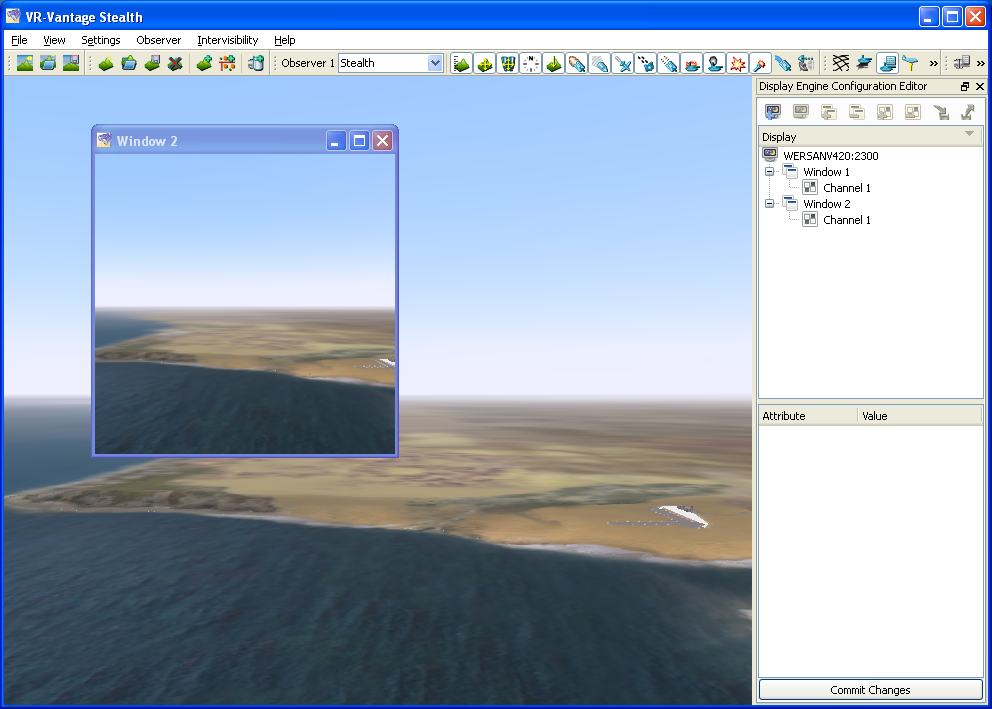
To add a window from the file menu, choose File > New Stealth Window. A new window opens (Figure 8).
Figure 8: New window
Procedure 9: Adding a Window from the Display Engine Configuration Editor
-
Choose View > Display Engine Configuration Editor Panel.
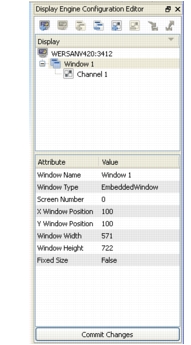
The Display Engine Configuration Editor Panel is added to the 3D Network Visualizer window (Figure 9).
Figure 9: Display Engine Configuration Editor Panel
Note: The Display Engine Configuration Editor Panel is available only in 3D Network Visualizer, not on remote display engines.
-
Select the display engine at the top of the Display tree.
-
Click the Add a Window icon (
 ), or right-click the display engine name and choose Add a Window on the menu.
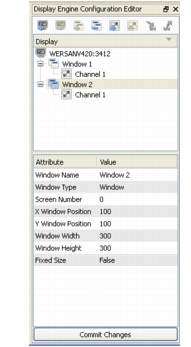
A new window opens and is listed in the Display Engine Configuration Editor Panel(Figure 9).
Figure 10: New window
Adding a Channel to a Window
Adding a channel to a window lets you configure multiple views within that window.
Procedure 10: Adding a Channel to a Window
-
In the Display Engine Configuration Editor Panel, select the window to which you want to add a channel.
-
Click the Add a Channel icon (
 ), or right-click the window name and choose Add a Channel from the menu.
Note: To see a difference between the channels, change the attributes of the new channel (Figure 18). For details about editing channel attributes, please see Changing a Channel’s Attributes.
Removing a Window
Procedure 11: Removing a Window
- In the Display Engine Configuration Editor Panel, select the window that you want to remove.
- Click the Remove Window icon (
 ), or right-click the window name and choose Remove Window from the menu.
Removing a Channel
Procedure 12: Removing a Channel
- In the Display Engine Configuration Editor, select the channel that you want to remove.
- Click the Remove Channel icon (
 ), or right-click the window name and choose Remove Channel from the menu.
Saving a Display Engine Configuration
You can save a display engine configuration so that you can easily replicate the configuration at a later time.
Note: If you are running two or more display engines, you cannot save the configuration for all of them at once. You have to save the configuration for each display engine individually.
Procedure 13: Saving a Display Engine Configuration
- In the Display Engine Configuration Editor, select the display engine whose configuration you want to save.
- Click the Save Display Engine Configuration icon (
 ), or right-click the name of the display engine and choose Save Display Configuration on the menu. The Save Display Configuration dialog box opens.
- Type a name for the display configuration.
- Click Save.
Loading a Display Engine Configuration
Note: You cannot load multiple display engine configurations at the same time in the Display Engine Configuration Editor. You can only load one configuration at a time. However, you can load multiple configurations from the command line. For details, please see Loading Multiple Display Engine Configurations from the Command Line.
Procedure 14: Loading a Display Engine Configuration
-
In the Display Engine Configuration Editor Panel, select the display engine at the top of the window.
-
Click the Load Display Engine Configuration icon (
 ), or right-click the name of the display engine and choose Load Display Engine Configuration on the menu.
The Load Display Configuration dialog box opens.
-
Select the display configuration you want to load.
-
Click Open.
Loading Multiple Display Engine Configurations from the Command Line
3D Network Visualizer users often set up multichannel configurations that they wish to reuse. (For details, please see Configuring Multichannel Displays.) You can load these configurations (or any set of configurations) in the Display Engine Configuration Editor Panel, as described in Loading a Display Engine Configuration. However, you cannot load them as a group. You must load each one individually. To automate the process of loading multiple display engine configurations, you can load them from the command line.
You load multiple display engine configurations from the command line with the --dispSetting command line argument and the -W or --withDisplayEngine command-line argument. The syntax is:
set OP_3DNV_VISUALIZER_EXTRA_ARGS = --dispSetting masterdisplayConfigFile
   -W port@netAddress;remotedisplayConfigFile1 ....
   port@netAddress;remotedisplayConfigFileN
op_3dnv_launcher.exe
The --dispSetting argument specifies the display engine configuration file for the 3D Network Visualizer application. The -W argument specifies the display engine configurations files for the 3DNV Display Engines. The display engine configuration file name can be an absolute path or a path relative to the executable. For example, suppose that you have saved display engine configurations for a master display engine and two remote display engines. You save the configuration for each display engine as follows:
- Master display engine —
../appData/settings/stealth/machine1.dcx - First remote display engine —
../appData/settings/stealth/machine2.dcx - Second remote display engine —
../appData/settings/stealth/machine3.dcx.
To load these three configurations:
- Run the remote display engines on the two remote machines.
- Start 3D Network Visualizer with the following command line:
set OP_3DNV_VISUALIZER_EXTRA_ARGS = --dispSetting
   ../appData/settings/stealth/machine1.dcx
   -W 22563@machine2;../appData/settings/stealth/machine2.dcx
   22563@machine3;../appData/settings/stealth/machine3.dcx
op_3dnv_launcher.exe
Note: Make sure there is a space between each display engine configuration listed.