Connecting to a Display Engine
If you want to control a display engine, you must first connect to it.
Connections are made using TCP networking. All computers running display engines together must be on the same network. The display engines listen for 3D Network Visualizer on a TCP socket. A display engine can only be connected to a single master application.
Note: If you have trouble connecting to a remote display engine, make sure that your firewall is not blocking the port you are using to connect.
Note: It is possible to run multiple display engines on the same machine with different ports. However, this is not a recommended configuration.
Procedure 20: Connecting to a Display Engine
-
On one computer (the master), run 3D Network Visualizer.
-
On another computer, run the 3DNV Display Engine application, as described in Starting a 3DNV Display Engine.
-
On the master computer, choose View > Display Engine Configuration Editor.
The Display Engine Configuration Editor Panel opens (Figure 9).
-
In the Display Engine Configuration Editor Panel, click the Connect a Display Engine icon (
 ), or right-click the main display engine icon and choose Connect a Display Engine.
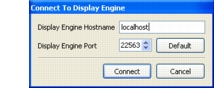
The Connect To Display Engine dialog box opens (Figure 19).
Figure 19: Connect to Display Engine dialog box
-
In the Display Engine Hostname box, type the host name or IP address of the computer on which the display engine is running.
-
Optionally, in the Display Engine Port box, specify a port for the display engine. The default is 22563. In most cases the default value will work well.
-
Click Connect.
The display engine is added to the Display Engine list. A window is added to the display engine. It shows the same view as Window 1 on 3D Network Visualizer.
Disconnecting from a Display Engine
Procedure 21: Disconnecting from a Display Engine
-
In the Display Engine Configuration Editor Panel, select the display engine that you want to disconnect.
-
Click the Disconnect a Display Engine icon (
 ), or right-click the display engine name and choose Disconnect Display Engine on the menu.
Note: You cannot disconnect the master display engine.