Update the Cyber Effects Configuration Node
New effects and their arguments (if any) must be added to the Cyber Effects configuration node. This makes them available on the selection list for use in scripts. If you have created a new category for the effect, the category also must be added to the configuration node. You add these items by editing attributes in the cyber_effects_attrib_definer process model.
Use the following procedure to access the attributes you need to edit.
Procedure 32: Accessing Effect Attributes on the Configuration Node
-
Open the
cyber_effects_attrib_definerprocess model. -
Choose Interfaces > Model Attributes.
The “Model Attributes: cyber_effects_attrib_definer” dialog box opens.
-
Select the Cyber Effect Scripts attribute, then click the Edit Properties button.
The “(Cyber Effect Scripts) Properties Inherited Tags [ ]” dialog box opens.
-
Select the Script attribute, then click the Edit Properties button.
The “(Script) Properties Inherited Tags [ ]” dialog box opens. The attributes you might need to edit (Category, Effect, and Arguments) appear in this dialog.
Figure 125: Script Properties Dialog Box
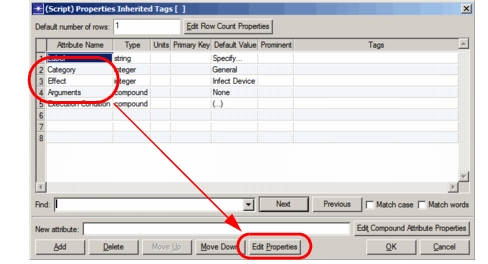
To access the Category, Effect, or Arguments attribute for editing, select it and click the Edit Properties button. Editing details for each attribute appear in the following sections.
End of Procedure 32
Adding a Category
If your custom effect does not fit in an existing category (such as General or IP), you can create a new category for it. Access the Category attribute (Procedure 32) and add a symbol for the new category to the symbol map. The value can be any unused integer, but must match the index used in the CyberT_Effect_Category enumeration type in cyber_effects.h. We suggest starting your custom numbering with 100, to avoid conflicts with future built-in categories.
Figure 126: Effect Category Symbol Map
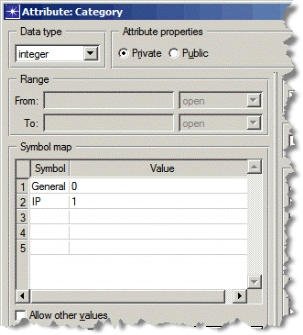
For example, if you add a new category named My_Category and give it the value 100 in the symbol map, you would add it to the CyberT_Effect_Category enumeration type as follows (additions shown in bold):
typedef enum CyberT_Effect_Category
{
   CyberC_General,
   CyberC_IP,
   CyberC_My_Category = 100,
   CyberC_Categories_Count = 3
} CyberT_Effect_Category;
Note that you must explicitly set the CyberC_Categories_Count item to the total number of categories in the enumeration type.
Adding an Effect
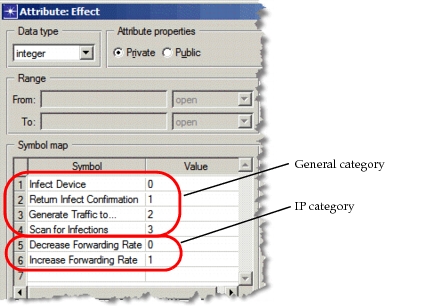
Access the Effect attribute (Procedure 32) and add a symbol for the new effect to the symbol map. Note that the symbols are grouped by category and numbering restarts within each category. The value you assign to your effect can be any integer that is unused within its category, but must match the index used in the category’s effects enumeration type structure in cyber_effects.h (for example, CyberT_Effects_General). We suggest starting your custom numbering with 100 in each category, to avoid conflicts with future built-in effects (see the example in Adding a Category). If the new effect belongs to a new category that you are adding, you also will need to define a new enumeration type structure for that category in cyber_effects.h.
Figure 127: Effect Attribute Symbol Map
Adding Effect Arguments
If your custom effect has arguments, you must add sub-attributes for them. Access the Arguments properties (Procedure 32) and add a sub-attribute for each argument used by the new effect.
You must also modify the cyber_effect_args_attribute_parse() function (located in the cyber_effects_attrib_definer function block). This function needs a case statement that will allocate memory and set values for the new arguments. It might need a case for a new category, as well, if you created one.
Note: The arguments you add to the configuration node will appear in the argument selection list for every effect, although only your custom effect will use them. If you have a license for OPNET Development Kit, you can make these arguments appear for only the custom effect by modifying display_cyber_effect_args_hide_handler() in cyber_effects_active_attr_handlers.ets.c.