Extracting Props from a Terrain
In the tutorial Composing a Terrain, we extract props from a feature layer by building a rule in the Add Props page. In this tutorial, we demonstrate the other way to create a prop—by extracting information from a terrain.
The general steps for extracting props from a terrain are:
- Create a new terrain with a terrain patch (Create a New Terrain and Add a Terrain Patch).
- Select the external references that you want to extract as props and extract them (Extract the Props).
- Optionally, change the model definitions (Change the Model Definition for a Prop).
Create a New Terrain and Add a Terrain Patch
Procedure 201: Creating the new terrain and adding a terrain database
- Choose File > New Terrain. If any terrain data is loaded, it is removed.
- Choose File > Add Terrain Patch. The Add Terrain Patch dialog box opens and an Open dialog box opens on top of it.
- Navigate to the
./data/Terrain/Makland/Geometry/OpenFlightdirectory. - Select
Makland.flt. - In the Add Terrain Patch dialog box, click OK. The terrain is loaded.
Extract the Props
Procedure 202: Extracting the props
-
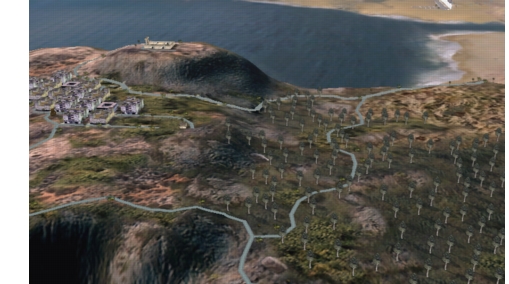
Move the observer so that you have a view of the plateau in Makland similar to Figure 196.
Figure 196: Makland
-
Click on the trees or building in the scene. Notice that you cannot select them. They are part of the terrain; they do not exist as props.
-
Choose Settings > Terrain. The Terrain Settings dialog box opens.
-
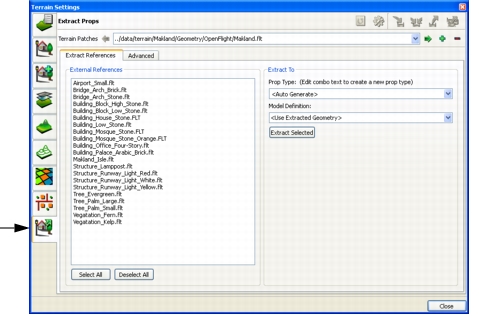
Select the Extract Props page (Figure 197). On the Extract References tab, the External References window lists all of the objects in the terrain that are incorporated into the terrain by reference. These are the objects that you can extract as props. You can extract them individually. For this tutorial, we will extract all of them.
Figure 197: Extract props page
-
Click Select All. All of the references are selected.
-
In the Extract To group box, click Extract Selected. The objects are extracted as props. The list of external references is cleared.
-
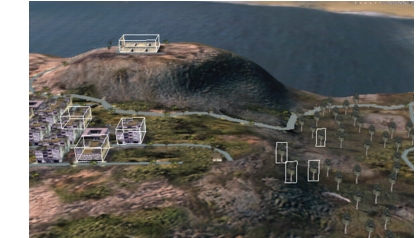
Click the trees and buildings on the plateau. You can now select them because they are props, not part of the terrain (Figure 198). They are displayed using the geometry in the OpenFlight files from which they were referenced. You can change the models that the props use if you want to. For example, you might want to change the trees to SpeedTrees.
Figure 198: Selected props
Change the Model Definition for a Prop
Procedure 203: Changing the model definition for a prop
-
Select one of the trees.
-
Choose Settings > Terrain. The Terrain Settings dialog box opens.
-
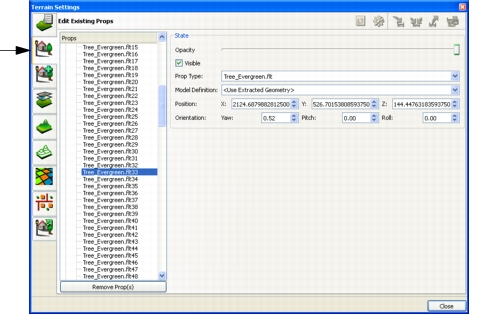
Select the Edit Existing Props page. The selected prop is highlighted in the list of props.
Figure 199: Edit Existing Props page
-
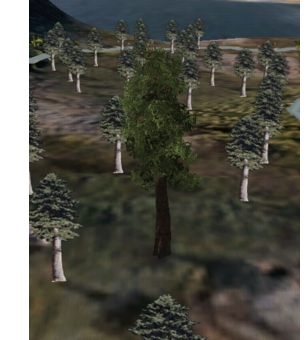
In the Model Definition box, select a model definition from the drop-down list, such as TreesGiantRedwoodST. The tree changes to the new model definition (Figure 200).
Figure 200: New model definition for tree
-
To restore the tree to its original model, on the Edit Existing Props page, change the model definition to Use Extracted Geometry.