Importing Logger Data into a Spreadsheet
After you export Logger data to a database, you can examine and manipulate the data just as you would any database. One common way to view the data is to import it into a spreadsheet and use the spreadsheet’s tools to analyze it, graph it, and so on.
Importing Data from MySQL to Microsoft Excel
This section explains how to import data stored in a MySQL database into Microsoft Excel. (This procedure uses Microsoft Excel 2010. Earlier versions may have slightly different menu options and dialog box names.)
Procedure 191: Importing data from a MySQL database to Microsoft Excel
-
Start Excel.
-
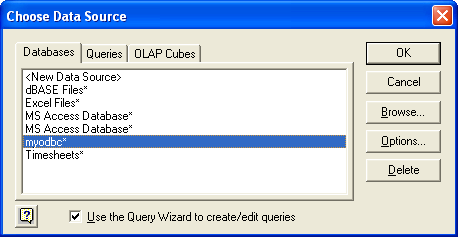
Choose Data > From Other Sources > From Microsoft Query. The Choose Data Source dialog box opens.
Figure 165: Choose Data Source dialog box
-
In the window, select the data source from which you want to import data.
-
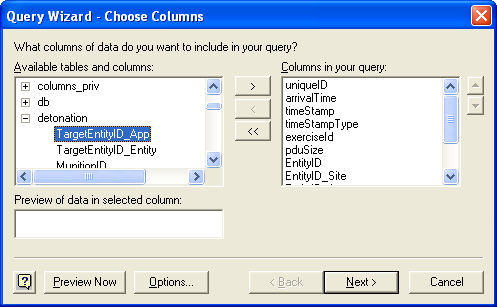
Click OK. The Query Wizard - Choose Columns dialog box opens. In the Available Tables and Columns window is a list of tables in the database. You can expand each table for a list of the columns in the table.
Figure 166: Query Wizard - Choose Columns
-
Select the tables and columns that you want to import to Excel.
-
Click the right-facing arrow to move the selected tables and columns to the Columns In Your Query window.
-
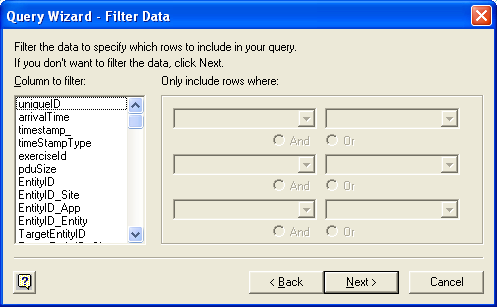
Click Next. The Query Wizard - Filter Data dialog box opens.
Figure 167: Query Wizard - Filter Data
-
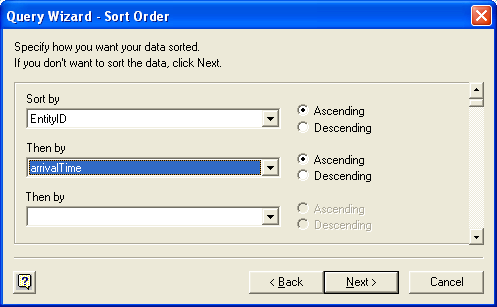
Set up any filtering that you want, then click Next. The Query Wizard - Sort Order dialog box opens.
Figure 168: Query Wizard - Sort Order
-
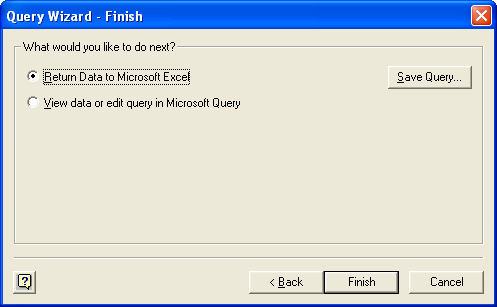
Set up any sorting that you want, then click Next. The Query Wizard - Finish dialog box opens.
Figure 169: Query Wizard - Finish
-
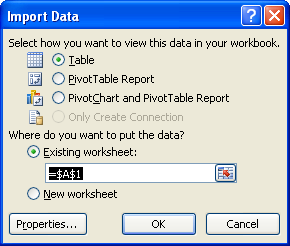
Select the Return Data to Microsoft Excel option and click Finish. The Import Data dialog box opens and a cell in the spreadsheet is highlighted.
Figure 170: Import Data dialog box
-
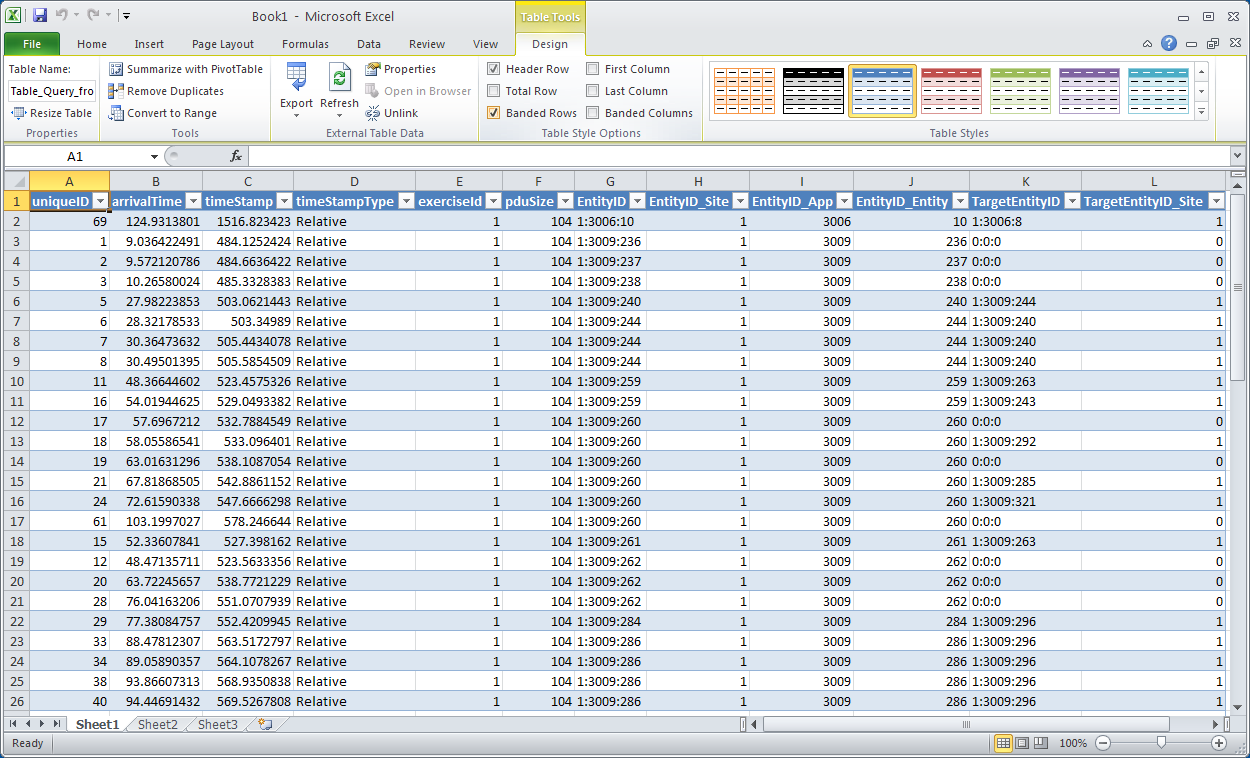
Specify where you want the data to be imported to and click OK. The data is imported into the spreadsheet.
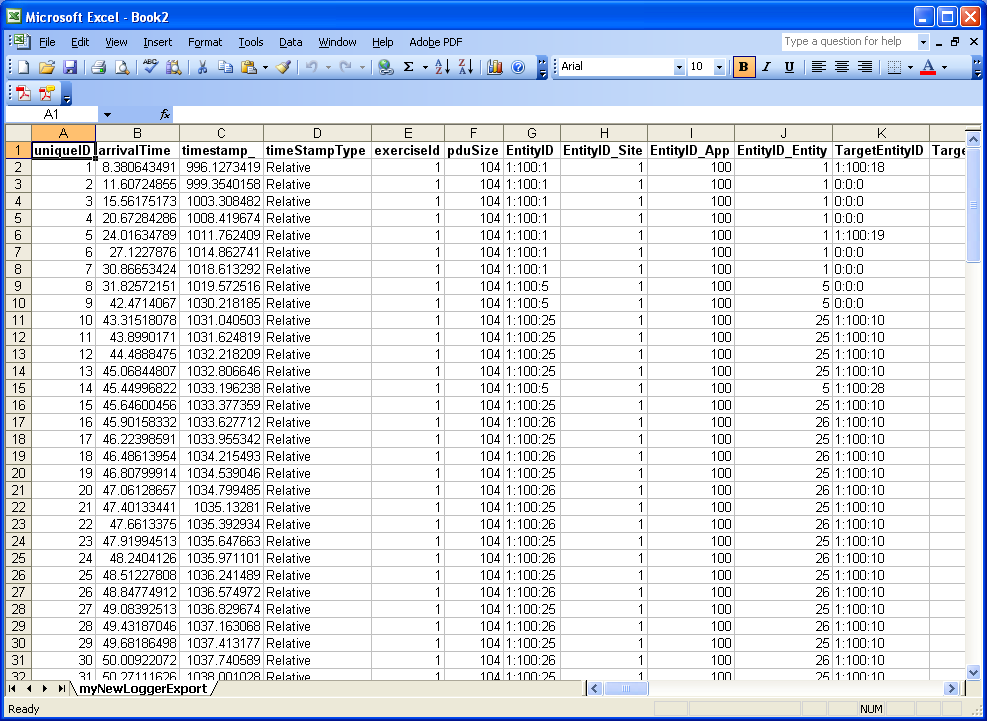
Figure 171: Spreadsheet with data imported
Importing Data from Access to Excel
This section explains how to import data from a Microsoft Access database to Microsoft Excel.
Procedure 192: Importing data from Access to Excel
-
Create an MS Access data source as described in Configuring a Data Source for Microsoft Access.
-
Export a Logger file to Access, as described in Exporting Data to a Database.
-
Start Excel.
-
Choose File > Open.
-
Set Files of Type to Access Databases.
-
Select the database that you want to open.
-
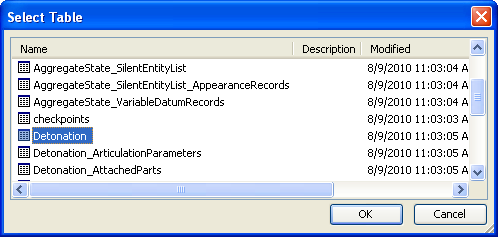
Click Open. You may receive a warning prompt. If so, click Open. The Select Table dialog box opens (Figure 172).
Figure 172: Select Table dialog box
-
Select the table that you want to import.
-
Click OK. The data is imported (Figure 173).
Figure 173: Logger file data imported from Access to Excel