Exporting Data to a Database
The Logger can export data to a database using ODBC. The Logger creates tables that contain the messages that it can decode. Optionally, you can create an object instance table and a checkpoint information table. You can apply filters to the data when it is exported.
The Logger uses underscores to separate words used as table and row names. Each PDU or HLA class has its own table. Variable length data is stored as indexed data in a subtable that contains the parent table's name followed by the variable's name. For example, if the parent table is aggregateentity, the subtable might be aggregateentity_silentagregates.
Note: Before you can export data to a database, you must set up a data source. For details, please see Configuring an ODBC Data Source, Configuring a Data Source for Microsoft Access, and Configuring a Data Source for MySQL.
Note: You do not have to purchase Microsoft Access to set up a data source for this format. For details, please see Configuring a Data Source for Microsoft Access.
Note: When the Logger exports data to an existing database, it only overwrites tables for which it is exporting data. If the database has existing tables for which there is no equivalent in the simulation being exported, the resulting database will contain data that does not represent any actual simulation. For example if you export a simulation that contains detonation interactions to database myLogger and then you export a simulation that does not have detonation interactions to myLogger, the detonation interaction data from the first simulation will still be in the database.
It is your responsibility to ensure that data is exported to a clean database.
Note: The Logger does not have to be connected to an exercise to export data. However if you use a custom filter, be sure that the filter does not require the Logger to be connected.
Procedure 188: Exporting Data to a Database
-
Open the file you want to export or stop a current recording and enter playback mode.
-
Optionally, select a segment of the file using the timeline sliders.
-
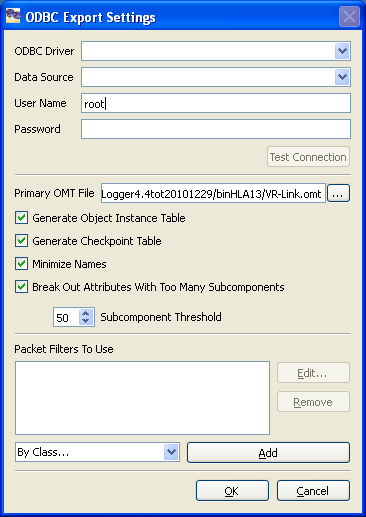
Choose File > Export to > Database or File > Export Selection To > Database. The ODBC Export Settings dialog box opens (Figure 154).
Figure 154: ODBC Export Settings dialog box
-
Select an ODBC driver in the ODBC Driver list.
-
Select a data source from the Data Source list.
-
For export to MySQL, enter the user name and password for the data source.
-
Optionally, click Test Connection to test the connection to the data source.
-
Optionally, check or clear the check boxes for the optional tables.
-
Optionally, , change the threshold for breaking up attributes into subtables or disable this feature. (RPR FOM 1.0 files should not need to do this, but RPR FOM 2.0, draft 17 files do. For more information, please see Exporting HLA Data to a Database.)
-
Optionally, specify a filter to use while exporting data, as follows:
10.1 Select a filter type from the drop-down list.
10.2 Click Add.
10.3 Select the filter in the Packet Filters to Use list.
10.4 Click Edit.
10.5 Edit the list of classes to filter. For details about editing filter lists, please see “Filtering Logger Input and Output“ on page 435.
-
Click OK.
Configuring an ODBC Data Source
You must set up a data source before you open the Export To Database dialog box.
On Unix systems you must edit configuration files. GUIs vary depending on the operating system. The Logger uses the iODBC library to provide ODBC capability. Please see the following web site for details about configuring ODBC:
http://www.iodbc.org/index.php?page=docs/odbcstory
In Windows you create and configure data sources using the ODBC Data Source Administrator, as described later in this chapter.
Exporting HLA Data to a Database
The Logger can export data from any FOM. This is done by processing the FOM's OMT or XML file. One of these files is required to export any HLA data. If the OMT or XML file is poorly formed, incomplete, or ambiguous, or if a data format does not map conceptually to a database table/row format, the Logger might not be able to decode all data. However, the generic implementation handles the majority of data.
The Logger supports export of the following HLA data:
- Simple Data Types
- Complex Data Types
- Array Data (XML FOMs only)
- Fixed Cardinality Data
There is no defined HLA database schema. The schema is dynamically generated using the OMT file. HLA class names can be quite long. The Logger has an option to use the shortest unique name possible. For example, instead of using HLAObject_PhysicalObject_Platform_Aircraft it can use Aircraft. If there is name collision, each immediate parent class is prefixed to the name until a unique name is found.
When exporting to an Access database, there is a limit of 255 fields for any given table. It is possible that the number of fields generated for a class will exceed this limit. As an example, the RPR FOM 2.0017 BaseEntity.PhysicalEntity.Platform subclasses generate over 400 fields, not including the variable length attributes that are already broken out into subtables. The Logger can export these classes by breaking out additional attributes and parameters into subtables. It uses the number of fields an attribute will generate (based on the data type subcomponents) as a trigger. When the number of subcomponents exceeds a specified threshold, the logger can put that attribute into a separate subtable similar to the variable length data attributes. You can configure whether this threshold is considered and the number of subcomponents it takes in the ODBC Export Settings dialog box.
The Export Log
When you export Logger data, the Logger writes information about the export process to sql_export.txt in the ./bin directory from which you are running the Logger. The log file is important because it identifies the data that cannot be exported.