Configuring a Data Source for Microsoft Access
If you want to export data to Microsoft Access, you must configure a data source. You do not have to have Access installed to complete this procedure. (Of course, you will not be able to manipulate the database without Access installed. However, you can open the database in Microsoft Excel, as described in Importing Data from Access to Excel.)
Procedure 189: Configuring an ODBC Data Source for Microsoft Access in Windows XP
-
Open the Control Panel.
-
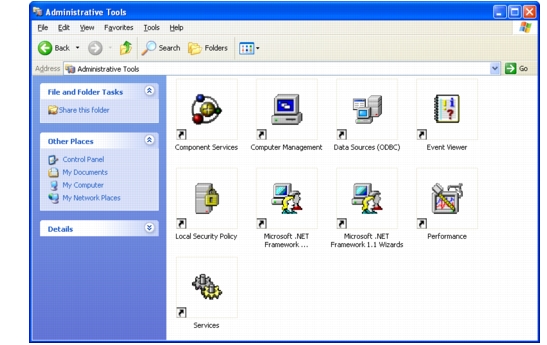
Double-click Administrative Tools. (It is part of the Performance and Maintenance group if your Control Panel groups applets.) The Administrative Tools folder opens (Figure 155).
Figure 155: Administrative Tools applet window
-
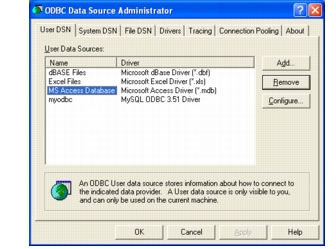
In the Administrative Tools folder, double-click Data Sources (ODBC). The ODBC Data Source Administrator dialog box opens (Figure 156).
Figure 156: ODBC Data Sources Administrator
-
Select the System DSN tab.
-
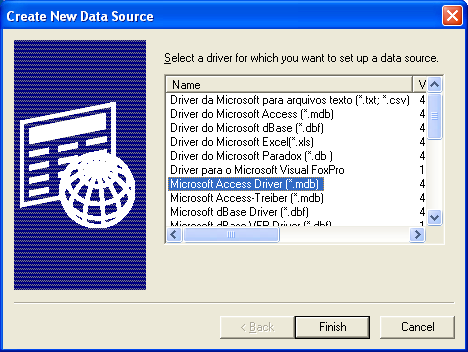
Click Add. The Create New Data Source window opens (Figure 157).
Figure 157: Create New Data Source window
-
Select Microsoft Access Driver (*.mdb).
-
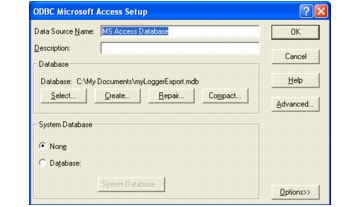
Click Finish. The ODBC Microsoft Access Setup dialog box opens (Figure 158).
Figure 158: ODBC Microsoft Access Setup dialog box
-
In the Data Source Name box, type a name for the data source.
-
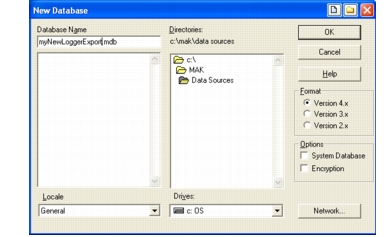
In the Database group box, click Create. The New Database dialog box opens (Figure 159).
Figure 159: New Database dialog box
-
In the Database Name box, type a name for the database, for example,
myNewLoggerExport.mdb. -
In the Directories list, select the directory where you want to create the database.
-
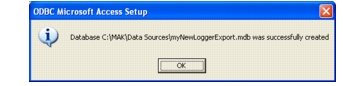
Click OK. An informational prompt advises you that the database has been created (Figure 160).
Figure 160: Information prompt
-
Click OK.
-
Continue clicking OK to back out of the dialog box sequence.
The next time you export a Logger file to database using the Microsoft Access driver and data source, it is exported to the database file you created in this procedure.