Attaching the Observer to an Entity or Prop
You can attach the observer to an entity and follow it as it moves through the simulation. You can also attach the observer to props.
Note: This procedure applies to Follow, Tether, Track, and Mimic modes. To attach in Tether Track or Mimic Track mode, please see Attaching the Observer in Mimic Track or Tether Track Mode.
To attach the observer to an entity or prop, do one of the following:
-
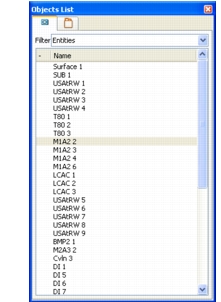
Right-click an object in the Objects List Panel (Figure 46) or in the window and click Attach mode, where mode is one of the supported attach modes. (For details about attach modes, please see Attach Modes.)
Figure 46: Objects List Panel
-
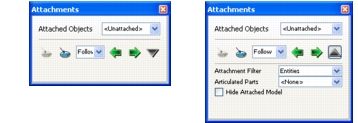
Select an entity or prop. (For details about selecting entities and props, please see "Selecting Entities" on page 260 and "Selecting Props" on page 160.) In the Attachment Panel (Figure 47), click the Attach button (
 ) to attach with the current attachment mode.
-
On the Attachments Panel, click the next or previous arrows to attach to the next (or previous) object in the object list.
Figure 47: Attachments Panel
-
Press greater than (
>) to attach to the next entity or prop in the object list, without regard to the attachment filter. Press less than (<) to attach to the previous object. (For details about the attachment filter, please see Filtering the Object Attachment List.) -
Press period (
.) to attach to the next entity or prop allowed by the attachment filter. Press comma (,) to attach to the previous object.
Note: When you select the next or previous object, 3D Network Visualizer chooses next and previous based on the order in which the objects were discovered. This may or may not represent the order in which they are listed in the Objects List Panel.
Note: When you move the attachment from one object to the next, 3D Network Visualizer preserves whatever changes you have made to the observer's view relative to the attached object. So if, for example, you moved the observer so that it is not looking at the attached object, when you attach to the next entity, the observer will not be looking at this object. It will be in the same relative position to the object that you previously established. To quickly return to the default offset for the attachment mode, press the
Spacebar.
Attaching to an Articulated Part
You can attach the observer to an articulated part on an entity, such as a turret. When you attach to an articulated part, the observer moves with the articulated part instead of the main body of the entity.
Procedure 60: Attaching to an Articulated Part
- Attach the observer to an entity, as described in Attaching the Observer to an Entity or Prop.
- On the Attachments Panel (Figure 47), click the down arrow. The Attachments Panel expands.
- In the Articulated Parts list, select the part to which you want to attach the observer.
Attaching the Observer in Mimic Track or Tether Track Mode
To attach the observer in tether track and mimic track modes, you must specify a primary attached entity and a secondary entity (the tracked entity).
Procedure 61: Attaching the Observer in Mimic Track Mode or Tether Track Mode
- Right-click the primary entity in the Objects List Panel or in the window. A pop-up menu is displayed.
- Choose Attach Mimic Track or Attach Tether Track. The cursor changes to show an arrow and a Plus sign.
- Click the secondary entity in the Objects List Panel or in the window.
Filtering the Object Attachment List
Although you can attach to entities and props, it is likely that at any given time you will only want to attach to one type of object (usually entities). To reduce the number of objects that you have to iterate through when using the keyboard or Attachments Panel arrows to pick the next or previous object, you can filter the attachment list.
Procedure 62: Filtering the Attachment List
- On the Attachments Panel (Figure 47), click the down arrow. The Attachments Panel expands.
- In the Attachment Filter drop-down list, select the type of scene element that you want to attach to.
Detaching from an Entity
To detach the observer from the entity to which it is attached, on the Attachments Panel (Figure 47), click the Attach icon ( ), or press
z.
Hiding the Attached Model
You can hide the model for the entity to which the observer is attached.
Procedure 63: Hiding the attached model
- On the Attachments Panel (Figure 47), click the down arrow. The Attachments Panel expands.
- Select the Hide Attached Model checkbox.
Attaching to Props
Since props do not move, attaching the observer to a prop does not result in any observer movement. The principle benefit of attaching to a prop is to let you quickly refocus the observer on a particular location in the scene. If you attach in Track mode, using the keyboard movement keys allows you to orbit around the prop.