Troubleshooting Tutorials
The following sections can help you resolve common problems.
- The Installation Directory
- The tutorial_req Files
- Saving Tutorial Files
- The tutorial_ref Directory
- Adding the Standard Model Directories
- Troubleshooting Simulations
- Additional Help
The Installation Directory
To complete the tutorials, you must install the Riverbed Modeler standard models, which include the required tutorial models. The standard models are normally installed when you install the Model Library.
Riverbed Modeler standard models apply to common protocols and vendor devices. The standard models are in the subdirectories under the release directory (<reldir>):
<reldir>\models\std\<protocol_name>
<reldir> describes the directory that contains the current Riverbed Modeler software.
You can find your <reldir> by performing the following procedure.
Procedure 1: Finding the <reldir>
- In the main menu, select Help > About This Application.
- In the About dialog box, click the Environment tab, and then expand the System Information section.
- Under System Information, find the Riverbed release directory.
For example, the <reldir> for a default installation of this release of Riverbed Modeler on Windows is
C:\Program Files\<install_dir>\<release>
The tutorials use the Windows convention of the backslash character () as the separator in directory pathnames. If you are using Linux, replace the backslash with a forward slash (/).
The tutorial_req Files
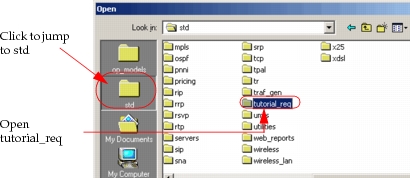
When performing a tutorial, you are asked to open specific tutorial model files. These model files are required to complete the tutorial; they are located in the <reldir>\models\std\tutorial_req directory or its subdirectories.
When you are asked to open supplied model files, make sure you navigate the directory structure in the general file chooser to the tutorial_req directory.
Figure 1: Navigating to the tutorial_req Directory
Saving Tutorial Files
In several tutorials, you are asked to open a model file and save it with a unique prefix, such as your initials (<your_initials>). This way, several users can create and complete their own copy of the same tutorial without interfering with each others' work.
When you save a new model file, or use the Save As… command to save an edited model file with your initials, remember to navigate to your default model directory (normally <user_home>\op_models) to save your files.
Figure 2: Navigating to the op_models Directory
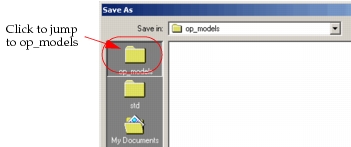
If you do not navigate to your default model directory (normally <home>\op_models) when you perform a Save As… operation, the file is automatically saved in the current model directory.
The tutorial_ref Directory
The tutorial_ref directory contains completed reference models for many tutorials.
If unable to complete a tutorial, you can compare your model to the tutorial_ref model to help determine the cause of the problem.
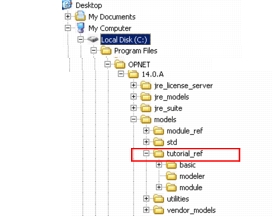
The tutorial_ref directory is: <reldir>\models\tutorial_ref\<subdirectory>.
The subdirectory contains models according to the category under which they are listed on the Tutorials menu for your product (for example, basic or module).
Procedure 2: Navigating to Completed Tutorial Reference Models
-
Navigate to the tutorial_ref directory.
-
Open the subdirectory that corresponds to the tutorial for your product.
Adding the Standard Model Directories
If you encounter issues when using any of the tutorial model files, try re-adding the standard model directories, as described in the following procedure.
Procedure 3: Adding the Standard Model Directories
-
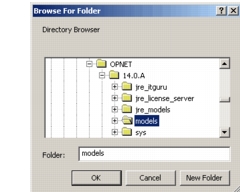
Select File > Manage Model Files > Add Model Directory.
Result: The Browse For Folder dialog box appears.
-
In the Browse For Folder dialog box, navigate to the
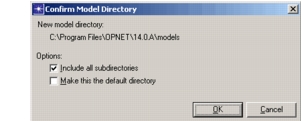
<release>\modelsdirectory, choose the directory, and then click OK (or Select in Linux).Result: The Confirm Model Directory dialog box appears.
-
Select the Include all subdirectories checkbox, and then click OK.
-
You can now try performing the tutorials again.
Troubleshooting Simulations
If your simulation did not complete as expected, you will need to discover the problem, which is usually with your project or with the product installation.
If a simulation does not run successfully with your model, but does run successfully using the tutorial_ref model, you can assume that the problem is with your model.
Run the simulation in the <tutorial_lesson>_ref model, as described in the following procedure.
Procedure 4: Troubleshooting Simulations
-
Select File > Open…
-
Navigate to the correct folder in the tutorial_ref directory, then click on the
<tutorial_lesson>_refmodel. One example of a completed tutorial can be found at tutorial_ref/basic/Sm_Int_ref. -
Select a scenario and then run the simulation.
If the simulation runs successfully, the problem is in your model.
Start with the first page of the tutorial and carefully compare the instructions with your model configuration.
You can also compare your model with the
<tutorial_lesson>_refmodel.
Additional Help
If a simulation or analysis does not complete, the problem might be with the installation. Try the following:
- Read the installation instructions.
- Contact technical support for recent updates to the tutorials, models, and product installation instructions (support.riverbed.com).
- Check the Knowledge Base section of the support website.