Creating OptiView Console Traffic Files
This section describes the procedures for creating OptiView traffic data files that you can import into NetPlanner. To see if your version of OptiView Console is supported by NetPlanner, go to http://support.riverbed.com, follow the links to NetPlanner documentation, and view the system requirements.
This section has the following subsections:
For general information about importing traffic flows, see "Importing Traffic Flows" on page 23.
Restrictions for OptiView Console Traffic Imports
OptiView Console can generate traffic data files subject to the following restrictions:
- OptiView Console can export IP-V4 traffic flows only.
- OptiView Console can export traffic from Fluke OC-3 WAN Analyzers only.
- OptiView Console can export a traffic flow only if it is among the 50 flows with the highest traffic levels (in packets/PDU and octets) visible to the WAN Analyzers.
- Traffic data is available for the previous seven days if imports have been enabled and the Import Service is running on OptiView Console. To import data for time windows earlier than the previous seven days, you must load archive data from the OptiView traffic agent. For more information, refer to the online documentation included with OptiView Console.
Workflow Description for OptiView Console Imports
There are two methods for generating OptiView traffic files:
- Manual generation, using the Optiview user interface—See Creating OptiView Traffic Files Manually (Graphical Interface))
- Automatic generation, using a command-line interface—See Creating OptiView Traffic Files Automatically (Command-Line Interface))
Creating OptiView Traffic Files Manually (Graphical Interface)
To generate traffic files, open the OptiView Console Viewer and choose Tools > Export Flow Records to OPNET. This opens the Export Flow Data to OPNET dialog box, listed in Table 4.
Figure 4: Export FLOW Data to OPNET Dialog Box
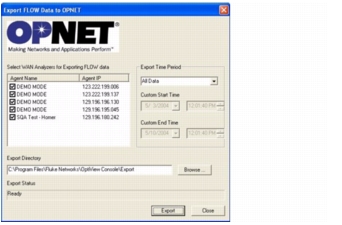
Table 4: Export FLOW Data to OPNET Dialog Box (OptiView Console)
| Option | Description |
|---|---|
| Select WAN Analyzers for Exporting FLOW Data | Select the WAN analyzers that you want to generate traffic data |
| Export Time Period | Select the time window for the traffic you want to export. |
| Export Directory | Destination directory for the OptiView data files. To automate the process of importing data into NetPlanner, this directory should be listed in your "traffic_archive_dir" preference (to set this preference, open NetPlanner and choose Edit > Preferences). |
Creating OptiView Traffic Files Automatically (Command-Line Interface)
You can generate OptiView data files using batch files or a command-line interface. This option is useful for generating data files automatically. You can create a batch file with one or more OptiView commands, then configure a scheduler to run the script at regular intervals (for example, once a night).
The OpnetExporter command generates NetPlanner-compatible OptiView data files. The format for this command is:
OpnetExporter -exportDir <directory> [-agents <agent_list>] [-<time_options>]
The following table lists the arguments of the OpnetExporter command.
Table 5: OpnetExporter Command-Line Arguments
| Argument | Description |
|---|---|
-exportDir <directory> |
Destination directory for the OptiView data files. To automate the process of importing data into NetPlanner, this directory should be listed in your "traffic_archive_dir" preference (to set this preference, open NetPlanner and choose Edit > Preferences). |
-agents <agent_list> |
A space-delimited list of WAN Analyzers. You can enter the Agent Name or Agent IP as it appears in Export FLOW Data to OPNET Dialog Box (OptiView Console). If this argument is not specified, OptiView generates data files from all listed agents. |
-<time_argument> |
The time window of the traffic data to export. You can specify one of the following arguments:-allTime-lastHour-last2Hours-last4Hours-last8Hours-last12Hours-last24Hours-customTime mm/dd/ccyy-hh:mm mm/dd/ccyy-hh:mmIf this argument is not specified, OptiView generates data for all available traffic. |