Dockable Panels and Toolbars
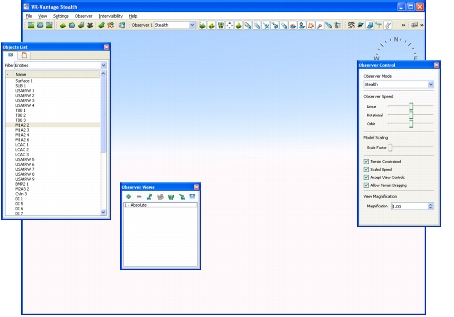
3D Network Visualizer has floating, dockable panels for many of its important functions (Figure 242). It also has toolbars that let you quickly access the commands available on the menus.
Figure 242: 3D Network Visualizer window and undocked panels
Docking and Undocking a Panel
Procedure 223: Undocking a panel
- Place the cursor over the panel's title.
- Press and hold the left mouse button.
- Drag the panel away from the window.
To dock a floating panel, double-click its title bar.
Docking and Undocking a Toolbar
Procedure 224: Undock a toolbar
-
Place the cursor over the handle.
Figure 243: Toolbar handle

-
Press and hold the left mouse button.
-
Drag the toolbar away from the window.
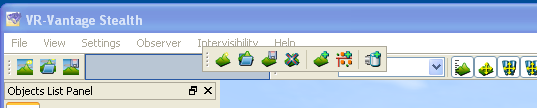
To dock a toolbar, drag it back to the toolbar strip. The other toolbars will move to create a space to drop in the toolbar (Figure 244).
Figure 244: Docking a toolbar
Displaying and Hiding Panels and Toolbars
You can hide any of the panels or toolbars.
To hide or view a panel or toolbar, select it on the View menu.
Restoring the Layout of Toolbars and Panels
3D Network Visualizer saves the layout of toolbars and panels when you shut down. You can restore the factory layout or the last saved layout.
Procedure 225: Restoring the layout of toolbars and panels
-
Choose Settings > Application. The Application Settings dialog box opens.
-
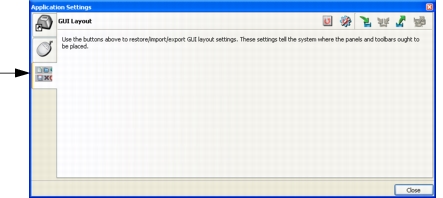
Select the GUI Layout page (Figure 245).
Figure 245: GUI Layout page
-
Click the settings icon for the operation you want to perform. (For a summary of common settings icons, please see “Managing 3D Network Visualizer Settings“ on page 126.)