Using Combined Key Mappings
You can assign a key combination to more than one function. This allows you to combine the behaviors of two or more functions into one key combination. For example, the Z key detaches the observer from the attached entity. The Space Bar resets the observer view to the default view. Suppose that whenever you detach from an entity, you want the observer to return to the default view. You could map the Reset function to Z. Z is now mapped to two functions. When you press Z, 3D Network Visualizer detaches from the attached entity and moves the observer to the default view.
Procedure 220: Managing Combined Key Mappings
-
Add the appropriate key mapping to a function.
-
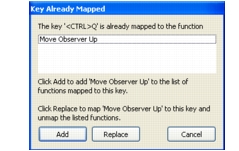
Click OK. The Key Already Mapped dialog box opens (Figure 241). It lists the functions that already use this key mapping.
Figure 241: Key Already Mapped dialog box
-
If the functions listed are the ones with which you want to share this key mapping, click Add. The key mapping is added to the function.
-
If you do not want to share this key mapping with other functions and want to use it for the function that you are editing, click Replace. The key mapping is applied to the function you are editing and removed from the functions listed in the dialog box.
-
If you do not want to remove the key mapping from existing functions and do not want to share it with the other functions, click Cancel. Presumably you wanted a unique key mapping for the function you are editing and did not realize you chose one that was already in use. Choose a different key mapping for this function.